

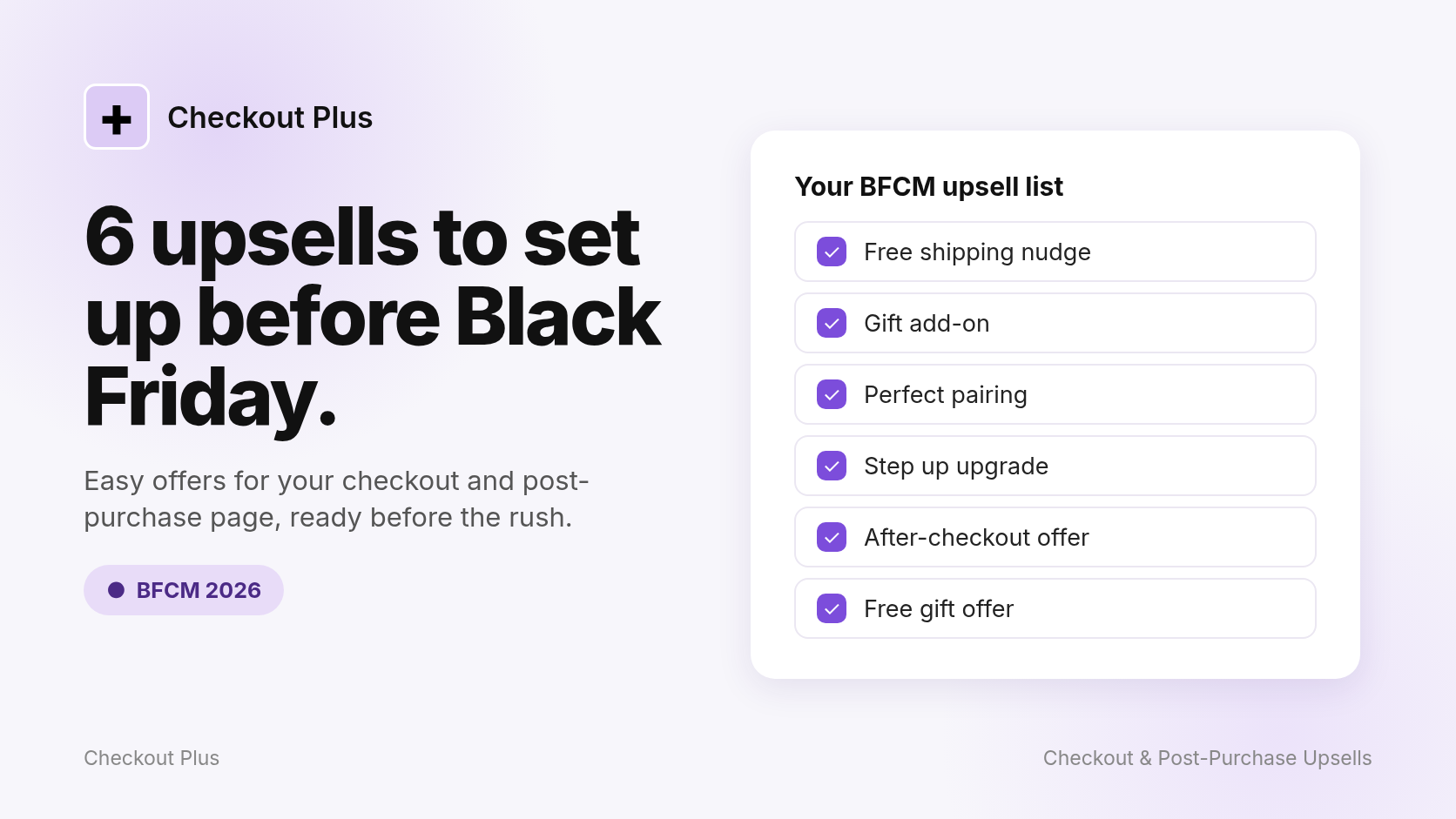
Black Friday 2026 lands on Friday, November 27, and Cyber Monday follows on November 30. Shoppers show up that weekend ready to buy, and checkout is where they've already made up their mind. That makes it a great spot for one small, helpful suggestion.
Here are six upsells you can set up with Checkout Plus before the rush, using checkout upsells and post-purchase upsells. Each one comes with why it works for BFCM and a quick how-to. Pick one or two, test them, and you're set.
1. The free shipping nudge
Why it works at BFCM
Free shipping thresholds get a lot of attention during holiday sales. A shopper who's a little short of the threshold is often happy to add a small item instead of paying for shipping, especially when you show them exactly how close they are.
Quick how-to
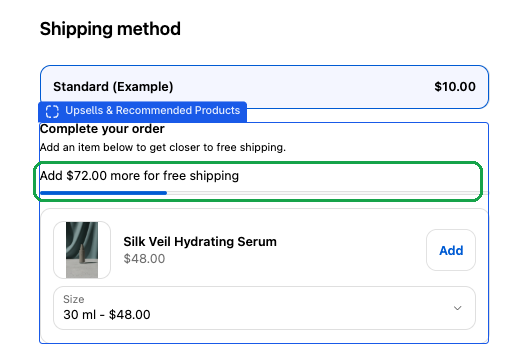
- Add the Checkout Plus Upsells & Recommended Products block to your checkout. It can show how much more the shopper needs to add for free shipping, with a progress bar that fills as they get closer.
- Use a heading like "Complete your order" and a short line like "Add an item below to get closer to free shipping." so shoppers know why the offer is there.
- Pick products that make sense as a small add-on, like a mini size, a refill, or an accessory. Shoppers tap Add and the bar moves closer to free shipping.
- Set your free shipping threshold in the app to match your store's real free shipping rate, then test it with a cart just under the threshold.
2. The gift add-on
Why it works at BFCM
A lot of BFCM orders are gifts. Gift wrap, a greeting card, or a gift box is an easy yes when the order is heading to someone else.
Quick how-to
- Set up your gift add-on as a product in Shopify, then offer it as a checkout upsell.
- Use a Heading on the Upsells & Recommended Products block that makes the gift angle clear, like "Sending this as a gift?"
- Want shoppers to add a note too? A Custom Input can collect a gift message right in checkout. Our gift messages guide and the help article cover the setup.
3. The perfect pairing
Why it works at BFCM
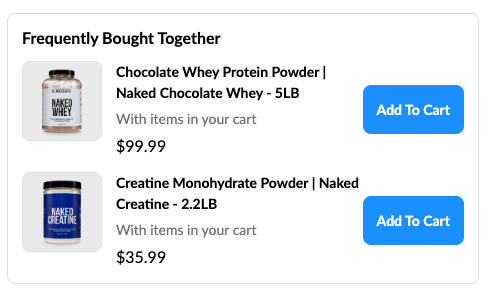
Shoppers move fast during big sales. Showing the case, refill, or accessory that goes with what's already in their cart saves them a trip back to your store.
Quick how-to
- In Checkout Plus, open Checkout Upsells and create a new upsell.
- Set conditions so it only shows when the matching product is in the cart. Keep the offer closely related so it feels like a tip, not a pitch.
- Want a holiday price on the add-on? Check Apply a discount exclusive to the upsell.
- In the checkout editor, make sure the Upsells & Recommended Products block is added.

4. The step up
Why it works at BFCM
Lots of shoppers stock up or buy gifts over the holiday weekend. Offering the bigger set or larger size of something they already picked grows the order without adding one more item to think about.
Quick how-to
- Create a checkout upsell, open Additional options, and check This is an upgrade product.
- Pick the item shoppers start with, then add the upgrade you want to offer.
- Our upgrade upsells guide has ideas, and the help article has every step.

5. The after-checkout offer
Why it works at BFCM
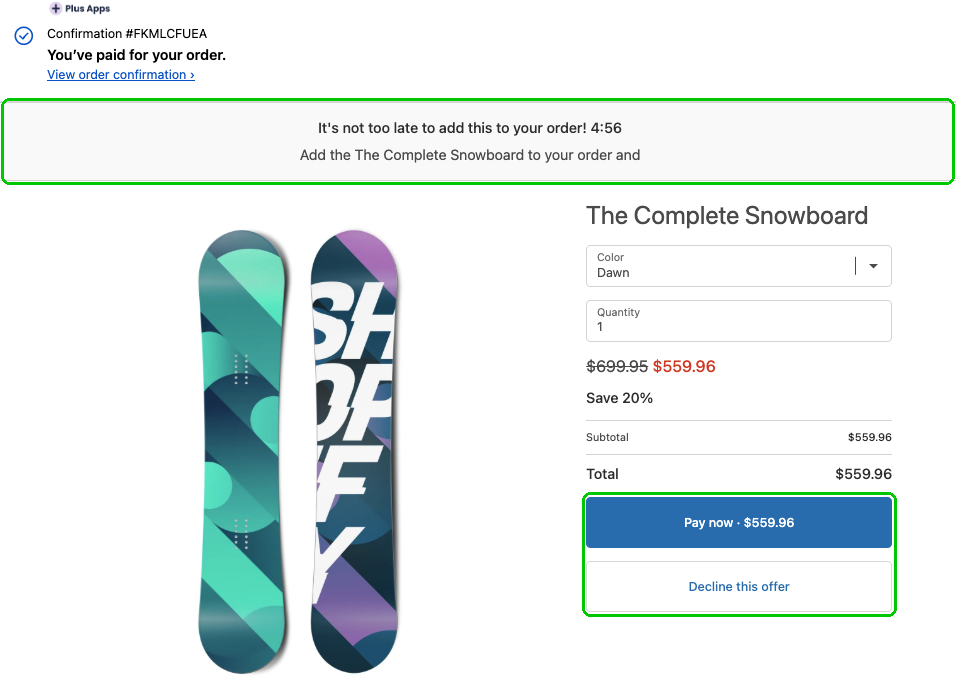
Once the order is in, a relevant offer can't get in the way of anyone finishing checkout. It's a bonus moment with a shopper who just said yes.
Quick how-to
- On the post-purchase page: in Checkout Plus, select Customize your Post Purchase Page, click Create New, and pick Product Upsell. Our post-purchase upsells guide and the help article walk through it.
- On the Thank you page: some orders skip the post-purchase page, like ones paid with express wallets. In the checkout editor, switch to Thank you and add the Upsells & Recommended Products block so those shoppers still see an offer. See our Thank you page upsells guide.
6. The free gift offer
Why it works at BFCM
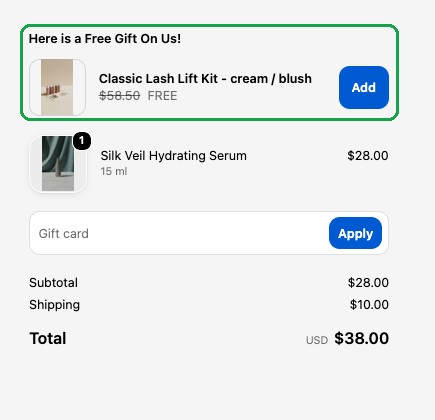
Everyone loves a freebie during the holidays. A free gift for bigger carts gives shoppers a fun reason to add one more thing, and it feels like a thank you instead of a pitch.
Quick how-to
- In Checkout Plus, under App blocks, select Customize your Checkout, then open Auto Add Product (Gift with Purchase) and select Manage.
- Under Select Condition, pick Based on Cart Total and enter your goal, then choose your gift under Select Product.
- Want shoppers to pick their own gift? Check Let customer choose their gift(s). In the offer below, the shopper taps Add to claim it.
- Check Schedule and set Go live (Start) and End so the gift runs only during your sale.
- In the checkout editor, add the Auto Add Product (Gift with Purchase) block under Order summary. Our help article walks through every step.
Before the rush
- Start small. One or two well-matched offers beat a crowded checkout.
- Check your stock. Make sure every upsell product has plenty of inventory.
- Test it. Place a test order on desktop and mobile, and try a wallet payment too.
Wrapping up
BFCM shoppers are already in a buying mood, so a small, relevant offer at the right moment can feel like good service. Pick the ideas that fit your store, set them up this week, and give yourself time to test before November 27.
Ready to try it? Install Checkout Plus from the Shopify App Store.