

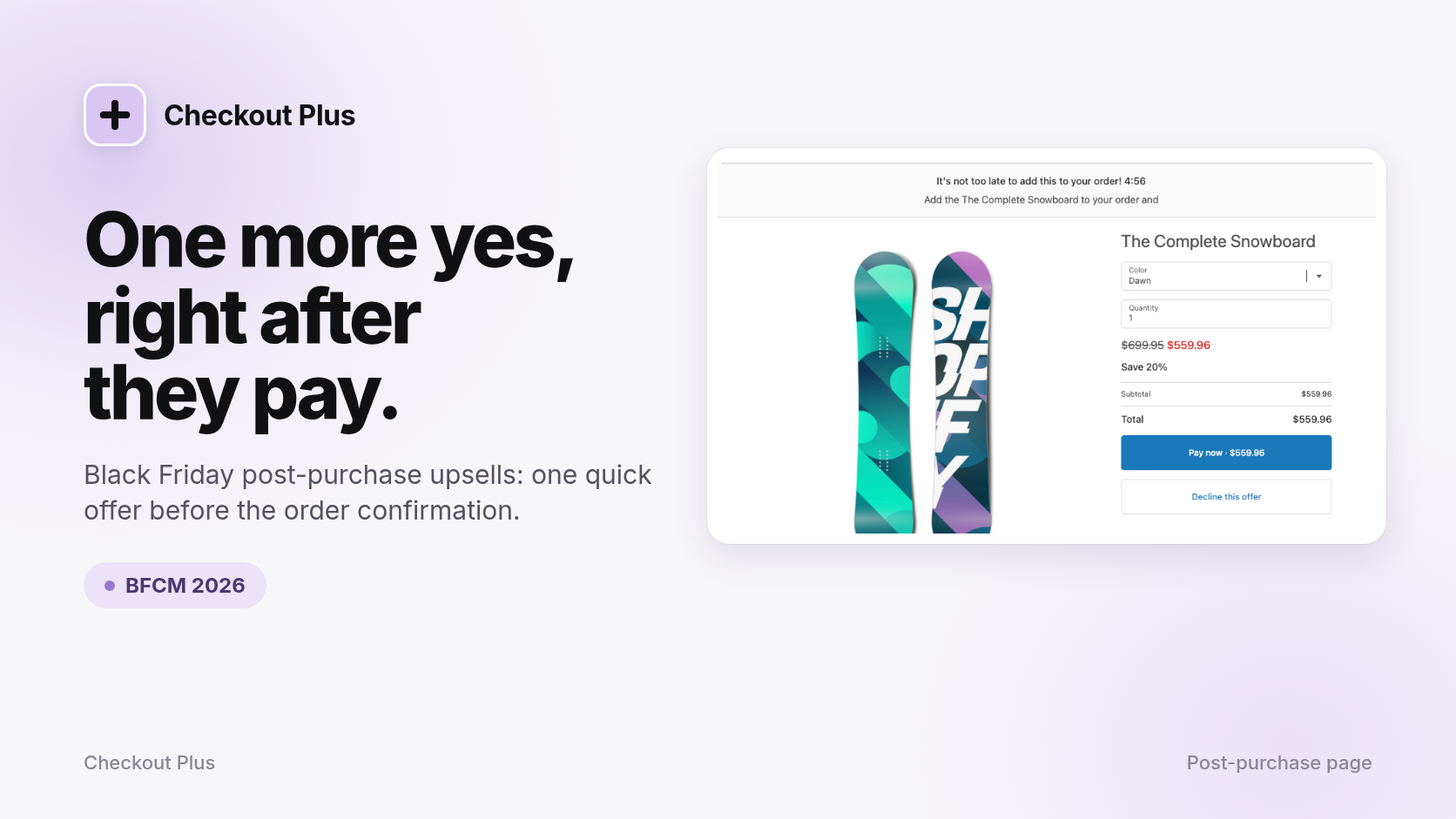
Black Friday 2026 lands on Friday, November 27, and Cyber Monday follows on November 30. You'll put a lot into getting shoppers through checkout that weekend. The post-purchase page gives you one more moment with them, right after they pay and before they see their order confirmation.
It's a great spot for a quick, well-timed offer. The order is already in, so a relevant add-on feels like a nice extra instead of a hurdle. This guide covers why post-purchase upsells work so well for BFCM, a few offer ideas, and how to set one up with Checkout Plus.
Why post-purchase upsells work for Black Friday
- The sale is already done. The offer shows up after payment, so it can't get in the way of anyone finishing checkout.
- It's one tap to add. When a shopper taps Pay now, the item is added to the order they just placed. No new checkout.
- Gift lists are long. Lots of BFCM orders are gifts, so "grab one more for someone else" makes natural sense.
- Urgency feels real. A BFCM discount plus a short countdown gives shoppers a clear reason to decide now.
How the post-purchase page works
The post-purchase page appears after the customer pays, but before the order confirmation. A few things to know before you plan your offer:
- Only one app can run your post-purchase page at a time, and you pick it in your Shopify checkout settings (more in Shopify's docs).
- Post purchase content doesn't display when an order is paid entirely with a gift card, when the customer uses express wallet payments, or when the order total is zero.
- Because some orders skip it, pair it with a lighter offer on your Thank you page. Our Thank you page upsells guide walks through that part.
Post-purchase offers are included starting on the Checkout Plus Basic plan ($19/mo), which works on all Shopify plans, so you don't need Shopify Plus for this one. See our pricing page for everything each plan includes.

Black Friday post-purchase offer ideas
The best post-purchase offers are small, relevant, and easy to say yes to in a few seconds.
The perfect pairing
Offer the accessory, case, or add-on that goes with what they just bought. It's the easiest yes because it makes their purchase better.
One more for the gift list
Shoppers buying gifts often have more names on their list. A second unit, another color, or a smaller giftable item fits right in.
The refill or restock
Selling something people use up? Offer a refill or extra so they're set through the holidays.
A post-purchase only deal
Give the offer its own BFCM discount, like 20% off, and say so in the banner. A deal they can only get on this page feels special.
How to set up a post-purchase upsell in Checkout Plus
Step 1: Open Post Purchase Content
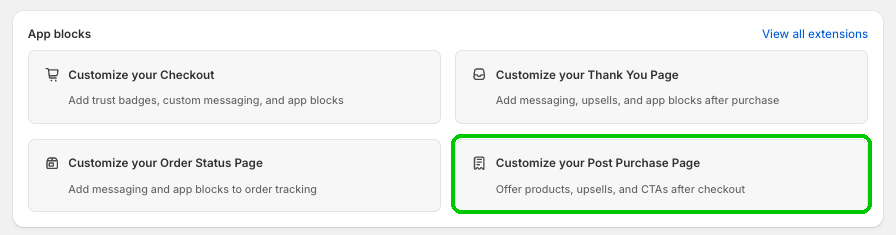
In your Shopify admin, open Apps and then Checkout Plus. Under App blocks, select Customize your Post Purchase Page. This opens the Post Purchase Content page.
Step 2: Create a Product Upsell
Click Create New at the top right. In Select Content Type, pick Product Upsell, which offers customers additional products after they complete their purchase.

Want to send shoppers to a page instead, like your gift guide or loyalty program? Pick Call to Action. Our post-purchase CTA guide has ideas.
Step 3: Write your offer
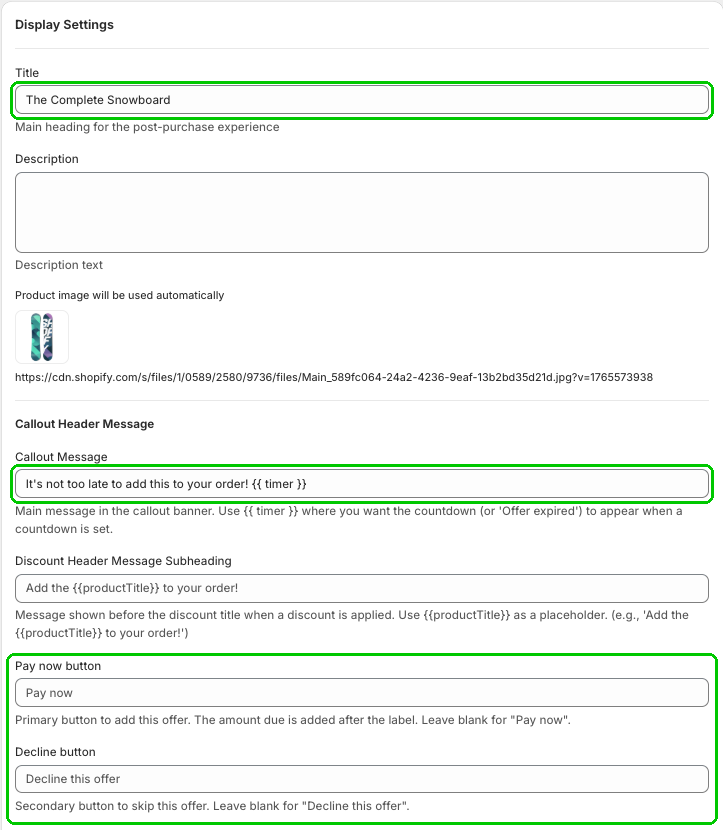
- Title: the main heading for the post-purchase experience. Description is optional, and the product image is added automatically.
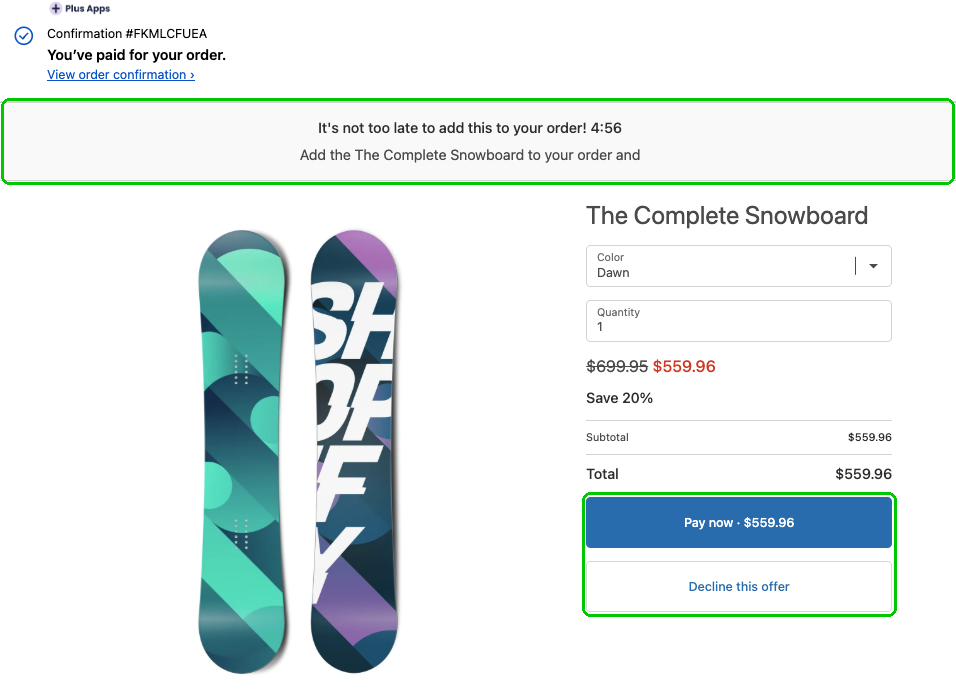
- Callout Message: the banner at the top, like "It's not too late to add this to your order! {{ timer }}".
- Discount Header Message Subheading: shows before the discount title when a discount is applied. You can use {{productTitle}} as a placeholder.
- Pay now button and Decline button: leave them blank to use "Pay now" and "Decline this offer". The amount due is added after the Pay now label.
Step 4: Add a countdown
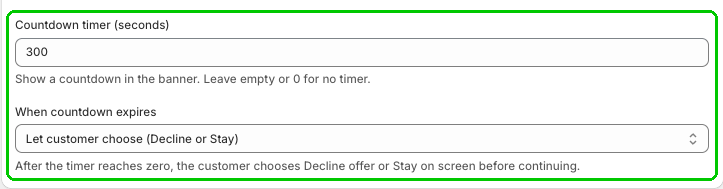
In Countdown timer (seconds), enter how long the offer lasts. For example, 300 is 5 minutes, and empty or 0 means no timer. Put {{ timer }} in your Callout Message where you want the countdown (or "Offer expired") to show. Under When countdown expires, Let customer choose (Decline or Stay) lets the customer decline the offer or stay on the screen to decide.
Step 5: Pick the product and the discount
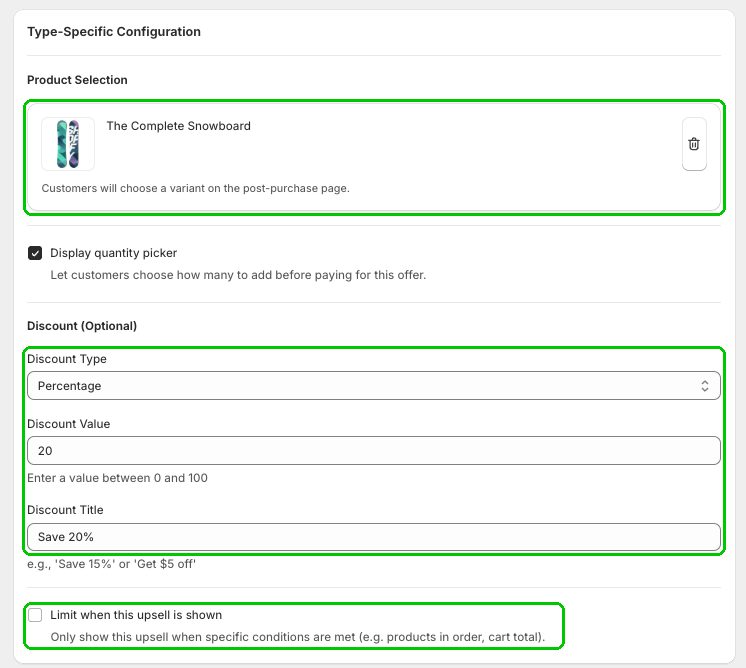
Under Type-Specific Configuration, add your product in Product Selection. Customers choose a variant on the post-purchase page, and you can check Display quantity picker to let them choose how many.
Then set your BFCM deal under Discount (Optional): pick a Discount Type like Percentage, enter a Discount Value between 0 and 100, and add a Discount Title like "Save 20%". Running more than one offer? Check Limit when this upsell is shown to only show it when certain conditions are met, like products in the order or cart total.
Step 6: Turn it on and save
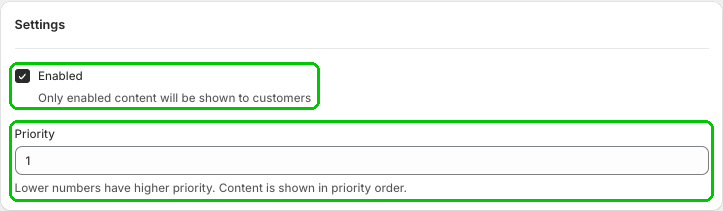
Under Settings, keep Enabled checked, since only enabled content is shown to customers. Use Priority to choose the order: lower numbers have higher priority. The Preview panel shows your banner, discount, and buttons as you go. Then save your upsell.
Step 7: Choose Checkout Plus for your post-purchase page
In your Shopify admin, go to Settings and then Checkout. Scroll to the Post-purchase page section, select Checkout Plus, and click Save. Shopify only shows this section after an app's setup is done, so do this after you save your upsell.
Step 8: Place a test order
Place a test order and pay with a regular card. After payment, you should see your banner and countdown, the discounted price, and the Pay now and Decline this offer buttons. Try both buttons, on mobile and desktop.
Tips for a better BFCM offer
- Lead with why it fits. Use the Title and banner to say why this item goes with their order.
- Keep the countdown friendly. A few minutes adds urgency without rushing anyone.
- Stock up. Pick a product with plenty of inventory so the offer doesn't sell out mid weekend.
- Cover everyone. Wallet and gift card orders skip the post-purchase page, so add a Thank you page upsell too.
Track how it's doing
The Post Purchase Content page shows Post Purchase Performance (Last 30 Days), with Upsells Accepted and Total Value Added. Click View Full Analytics for more. Check it during the weekend and swap out an offer that isn't landing. Our Upsell Analytics post covers what else you can track.
Wrapping up
Post-purchase upsells are one of the simplest BFCM wins: the order's already in, and the offer is one tap away. Pick one strong offer, add a BFCM discount and a short countdown, select Checkout Plus for your post-purchase page, and place a test order before the rush. For the rest of your prep, check our Black Friday merchant checklist.
Ready to try it? Install Checkout Plus from the Shopify App Store.