


Black Friday 2026 lands on Friday, November 27, and Cyber Monday follows on November 30. A lot of what ships that weekend is a gift, and a gift usually comes with something to say: "Happy birthday," "Merry Christmas," or just "Thinking of you."
If shoppers can't add that note when they buy, they email it to you later, or they skip it and the gift shows up feeling a little anonymous. A gift message field right in checkout fixes both. This guide covers why it's worth adding before BFCM, how to word it, and how to set it up with a Checkout Plus Custom Input.
Why collect gift messages in checkout
- The message stays with the order. No more matching "please add this note to order 1042" emails to the right box during your busiest week.
- It makes your store gift-friendly. A visible gift message field tells shoppers you're happy to ship straight to the person they're buying for.
- It's quick for shoppers. They're already typing an address. One more optional box takes seconds.
- It gives your team what they need. Length limits keep every message to a size you can print or hand-write on a card.
Where to put your gift message field
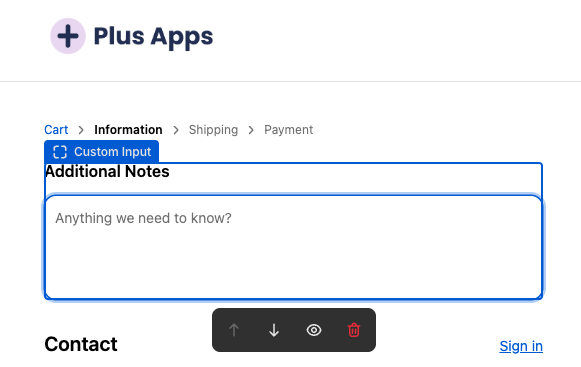
On the Information step
Put it near the shipping address, where shoppers are already thinking about who the order is for. Blocks on the checkout steps need Shopify Plus.
Near the top, but out of the way
Shoppers should notice it without feeling like they have to fill it in. A clear label that says it's optional does most of the work.

How to word your gift message field
Keep the label short and the example friendly. A few ideas you can adapt:
The simple label
"Gift message (optional)" with a placeholder like "Happy holidays, love Sam." Clear, short, and easy to skip when it's not a gift.
The card-sized prompt
"Add a note for the gift card" with helper text like "Up to two short lines." Handy when you hand-write or print a small card.
The packing slip note
"Gift note for the packing slip" works well if your message prints on the slip instead of a separate card.
The no-surprises reminder
"Shipping to someone else? Add a message and we'll include it." A gentle nudge for shoppers who didn't think of it yet.
How to set up a gift message field in Checkout Plus
Here's the quick version. For every click and setting, follow our help guide: How to Collect Holiday Gift Messages at Checkout with Checkout Plus.
Prefer video? Here's a quick walkthrough.
Step 1: Open your Custom Input settings
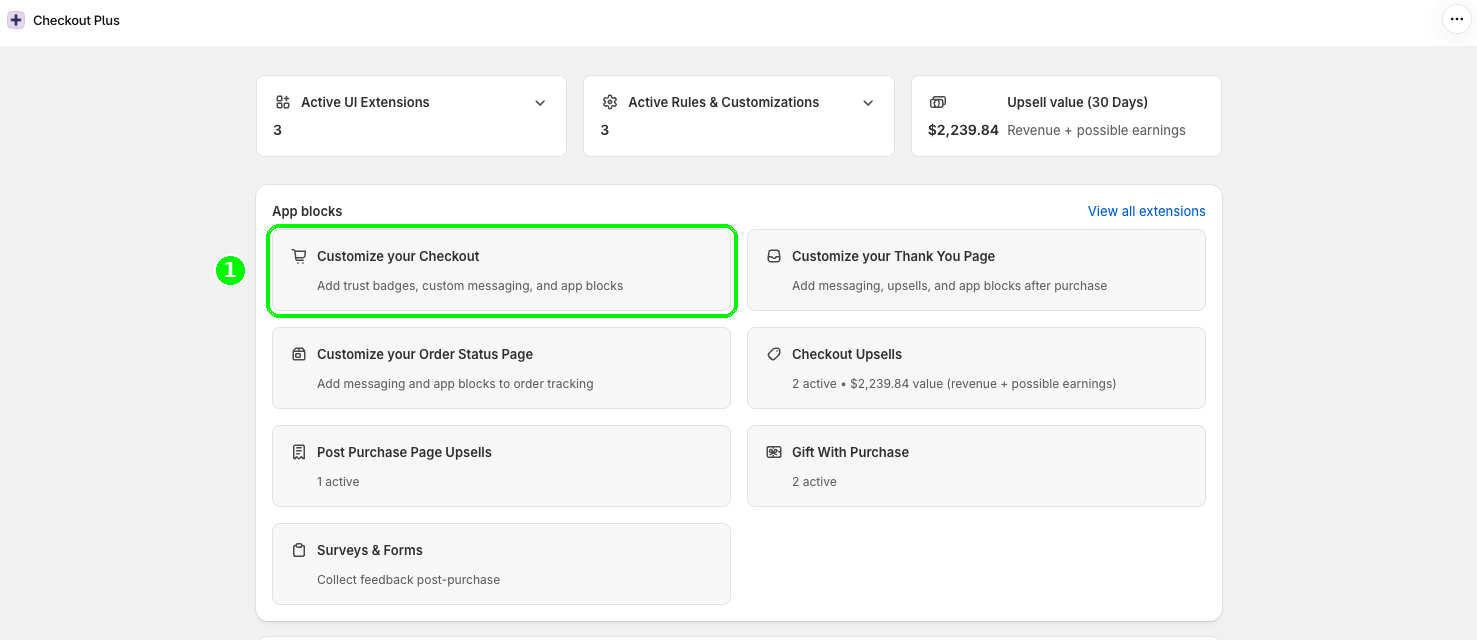
In your Shopify admin, open Apps and then Checkout Plus. Under App blocks, select Customize your Checkout, find the Custom Input block, and select Manage.
Step 2: Set up the field
Give it a clear label, add a short example as placeholder text, and switch it to the multi-line text area type so shoppers have room for a real note. Then select Save.
Step 3: Set a length that fits your card
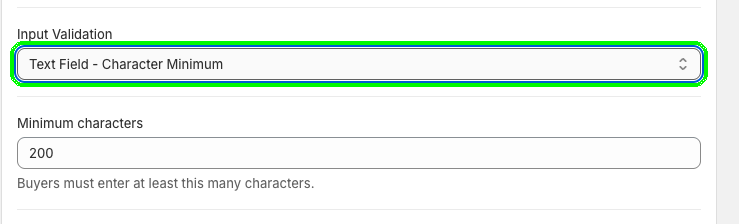
Under Input Validation, you can cap the length with a maximum, ask for a minimum with Text Field - Character Minimum and Minimum characters, or set both with the range option. For an optional gift message, a maximum on its own is usually the better fit.
Step 4: Add the Custom Input block in the Checkout Editor
In the Checkout Editor, go to the Information step. Under Main, select Add block and choose Custom Input under Checkout Plus. Point it at your gift message settings and select Save.
Step 5: Test it
Go through checkout on mobile and desktop, try a message that's too long, and place a test order. Then check that the message comes through on the order in your Shopify admin, so your team knows where to find it.
Tips for a smoother gifting season
- Tell your packing team first. Show them where messages land on an order before the BFCM rush, not during it.
- Set a limit you can print. Check how much fits on your card or slip, then set your maximum to match.
- Pair it with a gift. Running a free gift for bigger carts? See how to schedule a Black Friday free gift.
- Remind them when to order. Gift shoppers care about arrival dates, so add a shipping cutoff banner too.
- Translate it. Selling in more than one language? Make sure your field label is translated too.
Common questions
Do I need Shopify Plus?
Yes, to place a Custom Input on the checkout steps. Blocks on the Information, Shipping, and Payment steps need Shopify Plus.
Can shoppers skip the gift message?
Yes, as long as you don't set a minimum. If you use Text Field - Character Minimum, buyers must enter at least that many characters, so it's better for fields every shopper should fill in.
Can I give shoppers more room to write?
Yes. Custom Input supports a multi-line text area type, so longer notes don't get squeezed into one line.
Can I use Custom Input for other questions too?
Yes. The same block works for delivery notes or special instructions. Keep each field focused on one question.
Wrapping up
A gift message field is a small change that makes your store feel ready for holiday gifting. Set it up with a Checkout Plus Custom Input, keep it optional, give it a length that fits your card, and test it before the rush. For the rest of your prep, check our Black Friday merchant checklist.
Ready to try it? Install Checkout Plus from the Shopify App Store.