


Most upsells ask shoppers to add one more thing. Upgrade upsells in Checkout Plus ask a different question: want the better version of what you already picked?
Instead of adding an item, an upgrade swaps out one of the products in the cart. Think a 10-piece set instead of an 8-piece set, or a large bottle of a beauty product instead of a small one. Here's why upgrades are worth a spot in your checkout, a few ideas to start with, and how to set one up.
What's an upgrade upsell?
A regular upsell
Adds another product to the order, like a matching accessory or a refill.
An upgrade
Swaps out a product that's already in the cart. When the shopper adds the upgrade at checkout, the quantity they add is removed from the item you picked, so they get the better version instead of an extra product.

Why upgrades can raise AOV
- The order grows without getting longer. When the upgrade costs more than the original, order value goes up with no extra item in the cart.
- It builds on a choice they already made. The shopper already wants the product. You're just offering more of it.
- It's an easy decision. There's no new product to figure out, just a bigger or better version of the same one.
- It fits products with sizes or sets. If you sell the same thing in different counts or sizes, you already have upgrades ready to go.
Upgrade ideas to try
Bigger sets
Selling a set in more than one size? Offer the 10-piece set to shoppers who picked the 8-piece set.
Larger sizes
Beauty and personal care products often come in more than one size. Offer the 30 ml or 50 ml bottle to shoppers who picked the 15 ml one.
The premium version
Got a standard and a deluxe version of the same product? Offer the step up to shoppers who picked the standard one.

Upgrades for BFCM
During Black Friday and Cyber Monday, lots of shoppers are stocking up or buying gifts. A bigger set or a larger size is an easy yes when they already plan to buy, and an upgrade doesn't add one more item to think about during a busy weekend.
How to set up an upgrade in Checkout Plus
Here's the quick version. For the full walkthrough, see our help article: [HELP DOC LINK PLACEHOLDER].
Step 1: Open Checkout Upsells
In your Shopify admin, open Apps and then Checkout Plus. Select Checkout Upsells, then create a new upsell or open one to edit. Give it an Upsell Name and set your conditions, or check Always show this upsell (no conditions). Your usual priority, combining, customer type, and country settings still apply.
Step 2: Turn on the upgrade
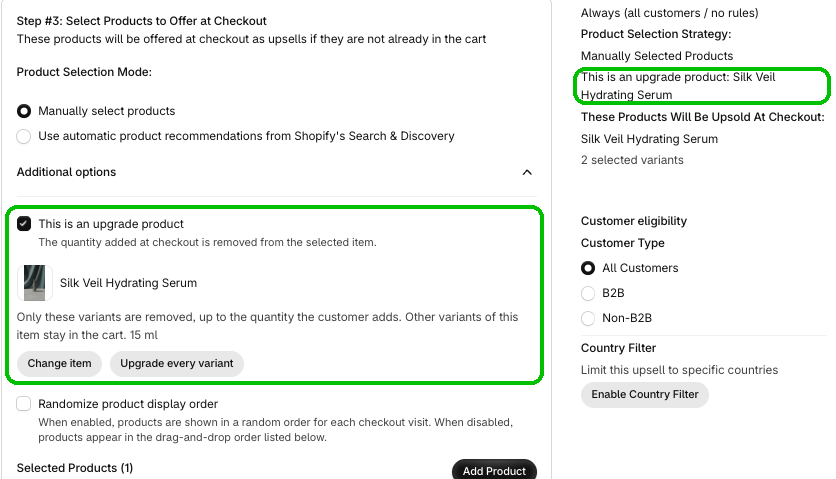
In Step #3, open Additional options and check This is an upgrade product.

Step 3: Pick the item to upgrade
In Select product, check the item shoppers start with, like the 15 ml size, and click Select. Only the variants you pick are removed, and other variants stay in the cart. Want any variant to be upgradable? Click Upgrade every variant.

Step 4: Add the upgrade product
Click Add Product, check the upgrade you want to offer, like the 30 ml and 50 ml sizes, and click Add. Want a special price? Check Apply a discount exclusive to the upsell. Then click Save.
Step 5: Check your checkout and test it
In the checkout editor, make sure the Upsells & Recommended Products block is added, and use its Heading to say what's on offer, like "Upgrade to a larger size at a discount!" Then add the original item to your cart, go to checkout, and click Add on the upgrade. Check that the quantity you added is removed from the original item, on desktop and mobile.
Tips
- Make it a clear step up. The new product should obviously be the better version of what they picked.
- Say what changes. A heading like "Upgrade to a larger size at a discount!" tells shoppers exactly what they're getting.
- Keep it close. Upgrade to a bigger or better version of the same product. For something different, a regular upsell is a better fit.
- Check your stock. Make sure the upgrade has plenty of inventory before a big sale.
Wrapping up
Upgrades give shoppers an easy step up from what they already picked, and they can grow your order value without adding another item. Pick a product that comes in a bigger set or a larger size, check This is an upgrade product, and test it before your next sale. New to upsells? Start with how to add upsells to Shopify checkout.
Ready to try it? Install Checkout Plus from the Shopify App Store.