


Black Friday 2026 lands on Friday, November 27, and Cyber Monday follows on November 30. You'll work hard to get shoppers to checkout that weekend. The thank you page is where they land right after they pay, which makes it one of the friendliest spots on your whole store to offer one more thing.
Think about it: they've already said yes. The order is in, they're feeling good, and a small, relevant add-on feels like a helpful tip instead of a sales pitch. This guide covers where after-purchase upsells can show up on Shopify, what to offer for BFCM, and how to set it all up with Checkout Plus.
Why thank you page upsells work for BFCM
- No extra traffic needed. You're selling to shoppers you already brought in.
- The hard part is done. The offer shows up after the order goes through, so it can't get in the way of anyone finishing checkout.
- Gift season helps. Lots of BFCM orders are gifts, so add-ons like gift wrap, a stocking stuffer, or package protection make natural sense.
- It's easy to test. One or two offers and one busy weekend tell you a lot about what your customers want next.
Thank you page vs. post-purchase page
Shopify has two places to show offers after payment, and Checkout Plus can customize both. They work a little differently, so it helps to know which is which.
The post-purchase page
This page appears after the order is confirmed, but before the Thank you page. It's built for offers that add products to the order the customer just placed. A few things to know from Shopify's docs:
- Only one app can run your post-purchase page, and you pick it in your checkout settings.
- It doesn't show for some payment methods, like Apple Pay, Google Pay, Amazon Pay, buy now, pay later services such as Klarna and Afterpay, or gift cards.
- Shoppers can accept up to three post-purchase offers per checkout.
- It only shows for orders placed through the Online Store sales channel.
The Thank you page
The Thank you page shows right after purchase (after the post-purchase page, if you use one). In Checkout Plus, Customize your Thank You Page is where you add messaging, upsells, and app blocks after purchase. Since the post-purchase page skips some orders, the Thank you page is how you reach the shoppers it misses.
Our take: use both for BFCM. Put your strongest offer on the post-purchase page, and use the Thank you page for a lighter add-on that every shopper can see.
What you need
- Checkout Plus installed on your Shopify store
- One or two products you'd honestly recommend to a BFCM shopper
- A few minutes to place a test order before the rush
Post-purchase page upsells and Thank you page customizations are part of the Checkout Plus Basic plan, which works on all Shopify plans. See our pricing page for everything each plan includes.

Step 1: Pick your BFCM offers
The best after-purchase offers are small, relevant, and easy to say yes to.
Ideas that work well
- The perfect pairing. A refill, accessory, or add-on that goes with what they just bought.
- A stocking stuffer. A small, giftable item for the rest of their list.
- Package protection or gift wrap. Peace of mind for orders shipping during the busiest weeks of the year.
- A treat for themselves. Shoppers buying gifts often grab one thing for themselves too.
Keep it simple
One strong offer beats five so-so ones. Stick to items with plenty of stock, so a popular add-on doesn't sell out halfway through the weekend.
Step 2: Set up a post-purchase upsell
Create the offer
On the Checkout Plus home page, find App blocks and select Customize your Post Purchase Page (it says "Offer products, upsells, and CTAs after checkout").

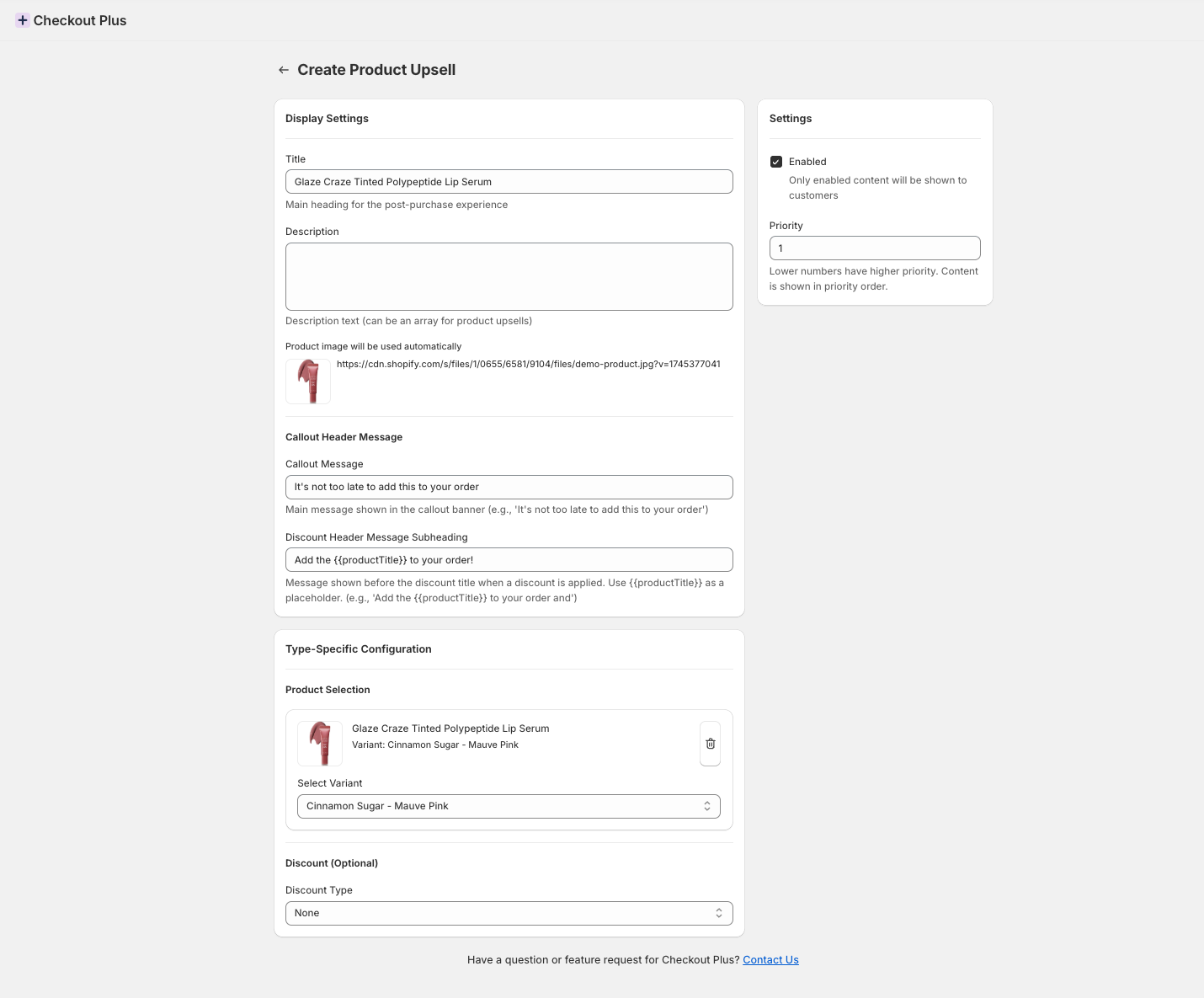
From there, create your upsell. The Create Product Upsell screen has a few sections:
- Display Settings: add a Title (the main heading for the post-purchase experience) and an optional Description.
- Callout Header Message: the Callout Message is the banner at the top, like "It's not too late to add this to your order." Discount Header Message Subheading shows before the discount title when a discount is applied, and you can use {{productTitle}} as a placeholder.
- Product Selection: pick the product, then use Select Variant if it has options.
- Discount (Optional): choose a Discount Type if you want to sweeten the deal for BFCM.
- Settings: keep Enabled checked, and use Priority to choose what shows first. Lower numbers have higher priority.
Turn on Checkout Plus for your post-purchase page
In your Shopify admin, go to Settings and then Checkout. Scroll to Post-purchase page, and under Use an app to add features at checkout after payment, select Checkout Plus. Save your changes.
Want screenshots of every step? Our post-purchase upsell guide walks through it.
Step 3: Add an upsell to your Thank you page
Set it up in Checkout Plus
Back on the Checkout Plus home, select Customize your Thank You Page. This is where you add messaging, upsells, and app blocks after purchase.
Add the block in the checkout editor
- In Shopify's checkout editor, make sure the page selector at the top shows Thank you.
- In the sidebar under Main, click Add block.
- Search for "upsell".
- Under Checkout Plus, pick Upsells & Recommended Products.

The block shows up on your Thank you page right away, with your offer products and an Add button on each one. You'll also see Upsells & Recommended Products listed under Main in the sidebar. Want it higher or lower on the page? Use the up and down arrows in the block toolbar to move it.

When it looks good, click Save in the top right corner.
While you're in there, take a look at the Order status page too. Customers come back to it to check on their order, so it's a great spot for holiday shipping cutoffs and return info. Set that up from Customize your Order Status Page.
Make the offer feel like a tip
- Lead with why it fits, like "Goes great with your new jacket."
- Keep the copy short: one line for the headline, one for the benefit.
- If there's a BFCM discount on the add-on, say so clearly.
Step 4: Test before the rush
- Place a test order and check the post-purchase page and the Thank you page on desktop and mobile.
- Try a wallet payment like Apple Pay or Google Pay, too. The post-purchase page won't show for those orders, so the Thank you page offer is the one those shoppers see.
- Double check that your offer products are in stock and set up the way you want.
Step 5: Track what's working
The Checkout Plus home shows Upsell value (30 Days), which adds up revenue and possible earnings from your upsells. Check it during the weekend and swap out any offer that isn't pulling its weight. Our Upsell Analytics post covers what else you can track.
Want upsells inside checkout too?
If your store is on Shopify Plus, you can also show offers during checkout with Checkout Upsells, under Popular Customizations on the Checkout Plus home. Our checkout upsells guide walks through it. Running a free gift promo as well? Here's how to auto add a free gift with a discount code.
Wrapping up
Thank you page upsells are one of the easiest BFCM wins, because shoppers who just bought from you are your warmest audience. Pick one or two offers, set up the post-purchase page and the Thank you page, place a test order, and keep an eye on your upsell numbers through the weekend. For the rest of your prep, check our Black Friday merchant checklist.
Ready to try it? Install Checkout Plus from the Shopify App Store.