

Upselling is one of the most effective ways to increase your average order value on Shopify. While many stores focus on upsells in the cart or product page, the checkout is actually one of the highest-converting places to present additional offers.
In this guide, we will show you how to add upsells directly to your Shopify checkout using Checkout Plus, along with best practices to maximize conversions.

Why Add Upsells to Shopify Checkout
Adding upsells at checkout works because customers are already committed to buying. This is the point of highest intent, making it the perfect moment to introduce relevant products or upgrades.
Key benefits include:
- Increase average order value without increasing traffic
- Capture last-minute add-ons at peak buying intent
- Improve overall revenue per customer
- Create a more personalized shopping experience
How to Add Upsells to Shopify Checkout
Step 1: Install Checkout Plus
Start by installing Checkout Plus from the Shopify App Store. Once installed, you will have access to checkout customization features designed for Shopify Plus stores.
Step 2: Navigate to Upsells
Inside the app dashboard, go to the Upsells section. This is where you will create and manage your checkout offers.

Step 3: Create a New Upsell Offer
Set up your upsell by choosing:
- The product you want to promote
- Where it appears in checkout
- Any discounts or incentives
Make sure the product is relevant to what the customer is already purchasing.

Step 4: Set Conditions ( Optional )
Use conditions to control when the upsell appears. For example:
- Based on products in cart
- Minimum order value
- Customer behavior
This ensures your upsells feel targeted and not random.
Note: youy can also use the 'Automatic Recommendations' option to use Shopify's recommended products based on the products in the customers cart

Step 5: Customize the Design ( Optional )
Match the upsell to your brand by adjusting:
- Layout and placement
- Messaging and copy
- Visual presentation
A seamless design increases trust and acceptance rates.
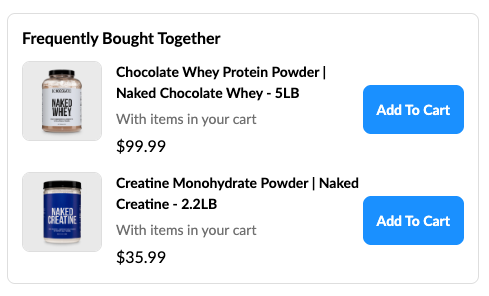
Here are a few examples:


Step 6: Publish and Monitor
Once your upsell is saved, add the upsell block to your Checkout Editor. Monitor performance and optimize over time. Test different products, messaging, and placements to improve results.

Best Practices for Checkout Upsells
To get the most out of your upsells, follow these tips:
- Keep offers highly relevant
- Limit the number of upsells to avoid overwhelm
- Use incentives like discounts or bundles
- Highlight value clearly
- Test and iterate regularly
Conclusion
Adding upsells to your Shopify checkout is one of the simplest ways to increase revenue without increasing traffic. With Checkout Plus, you can easily create targeted, high-converting upsell offers that feel like a natural part of the buying experience.