

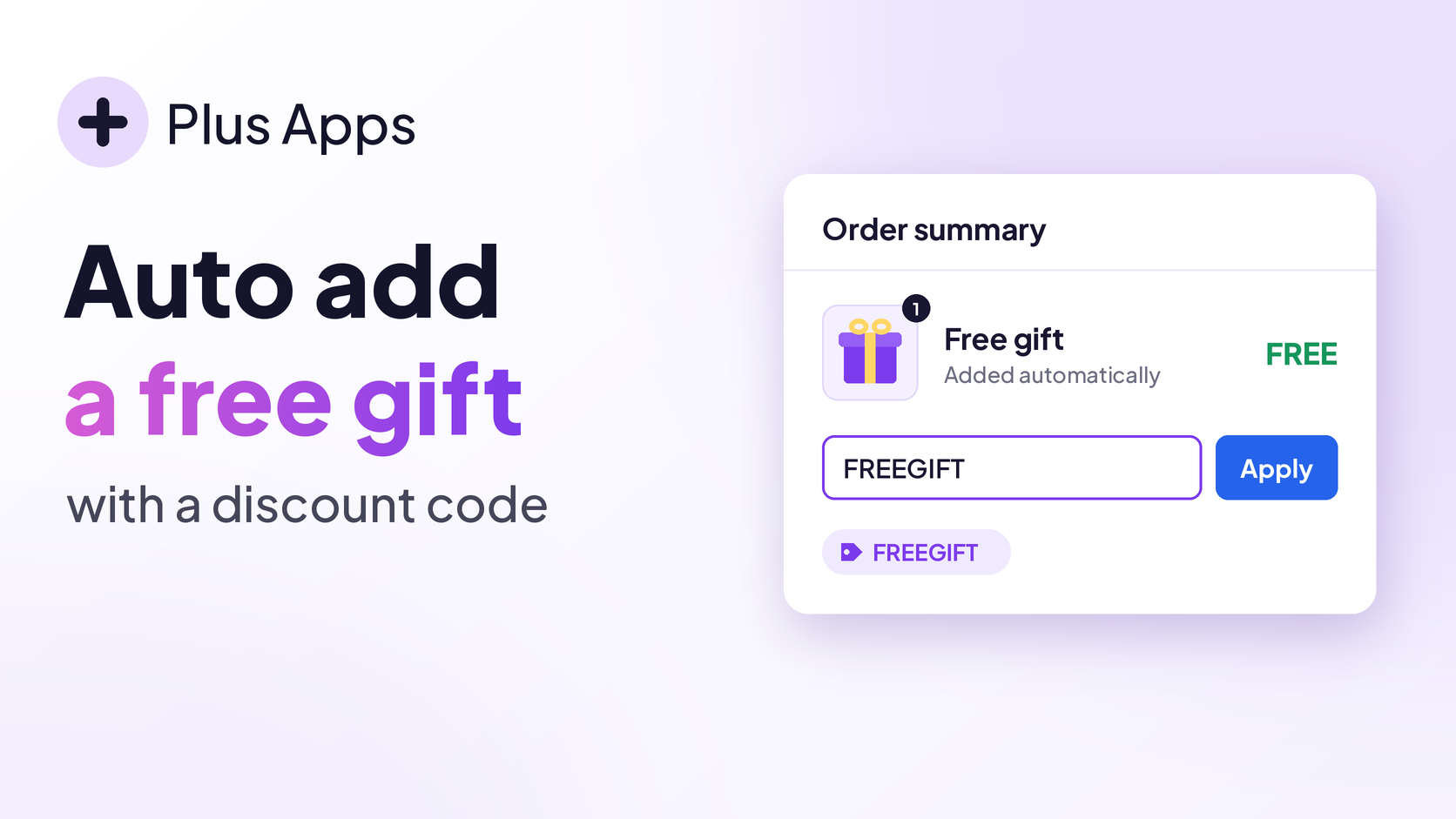
Black Friday Cyber Monday is loud. Every store is shouting "20% off," and shoppers tune most of it out. A free gift with purchase on Shopify cuts through, because it feels like a bonus instead of a markdown. Tie it to a discount code like FREEGIFT and you get a promo that's easy to share in emails, texts, and social posts, and easy to track.
The catch? Most setups make the shopper do the work. They enter the code, then go hunting for the gift. In this guide we'll set it up so the gift lands in the cart automatically, marked FREE, the moment the code is applied.
Why a gift with purchase code works for BFCM
- It protects your margins. A low cost gift often feels more valuable than a site wide markdown.
- It's easy to promote. One short code works in every channel, and you can see exactly how many people used it.
- It's easy for shoppers. No extra clicks. The gift shows up on its own.
- It's great for clearing stock or sampling. Put a new product or extra inventory in front of your busiest crowd of the year.
What you need
- A Shopify Plus store
- Checkout Plus installed (it adds the gift to the cart)
- Discount Plus installed (it makes the gift free with the code)
- One code you'll use in both apps, like
FREEGIFT. It has to match exactly. - Testing on a development or staging store? Both apps are free on development and staging stores. Here's how.
Step 1: Create the free gift code in Discount Plus
Pick the Free Gift discount type
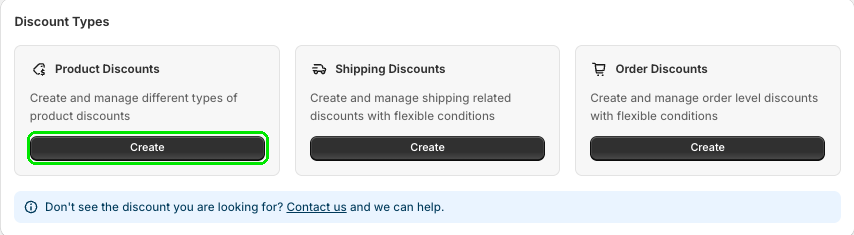
In Discount Plus, go to Discount Types and select Create on Product Discounts. Then select Create next to Free Gift.

Set it up as a discount code
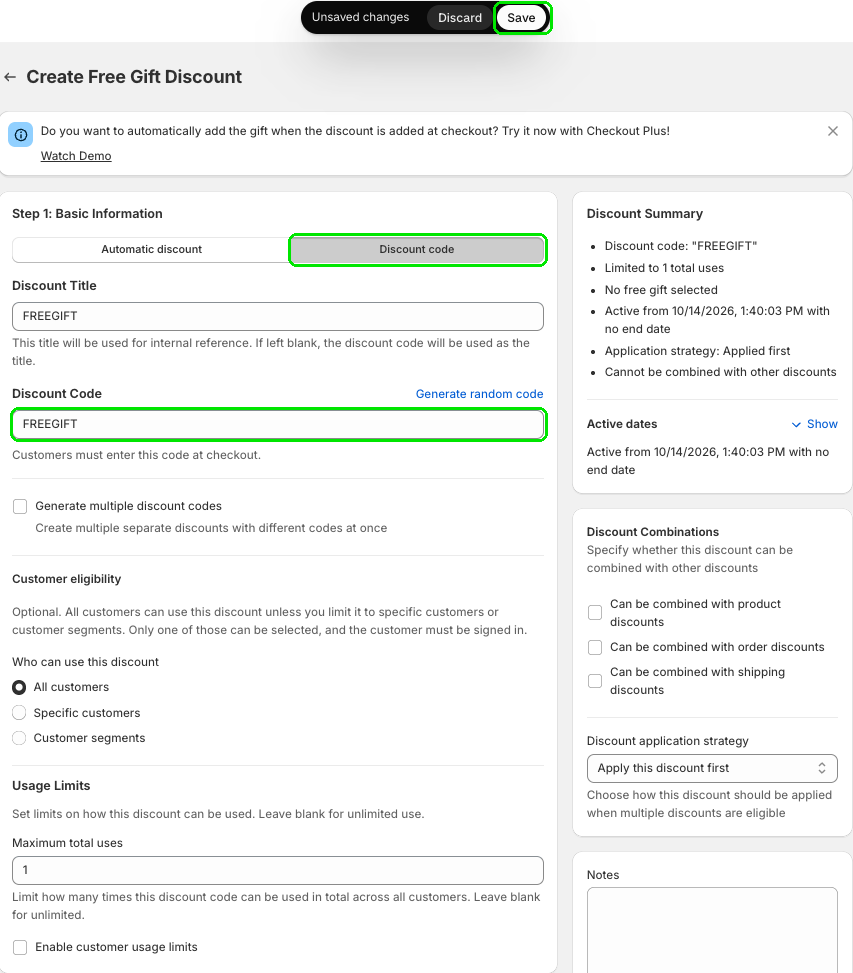
On Create Free Gift Discount, pick the Discount code tab. Add a Discount Title and your Discount Code, like FREEGIFT. You can also set Usage Limits and Discount Combinations for your BFCM plan.
Choose the gift
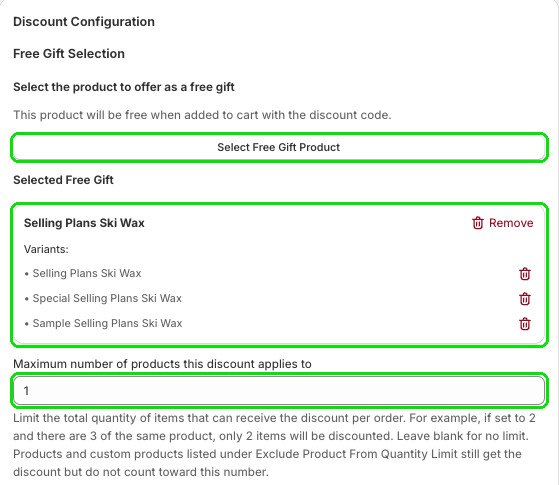
Under Free Gift Selection, select Select Free Gift Product and pick your gift. Set Maximum number of products this discount applies to to 1, then select Save. Now the gift is free whenever it's in the cart with your code.

Step 2: Auto add the gift with Checkout Plus
Open the Auto Add editor
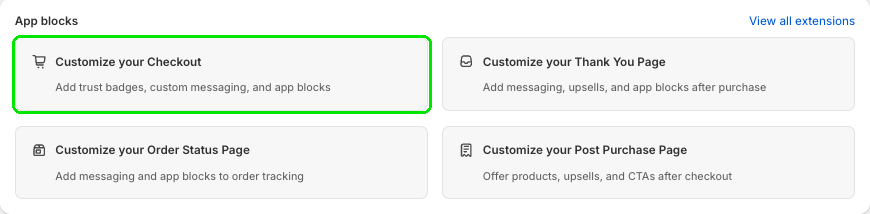
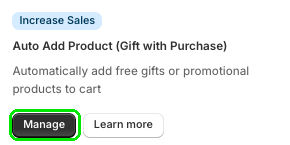
In Checkout Plus, select Customize your Checkout under App blocks (or the Gift With Purchase card). Open Auto Add Product (Gift with Purchase) and select Manage.
Trigger it with your code
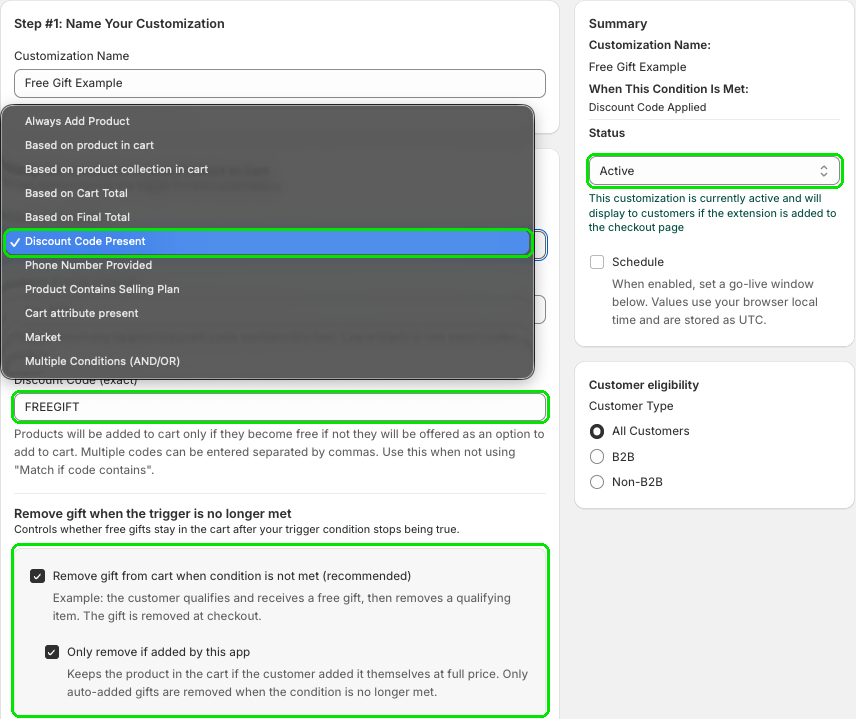
Give it a Customization Name, then set Select Condition to Discount Code Present. In Discount Code (exact), enter the same code from Discount Plus. Keep Remove gift from cart when condition is not met (recommended) and Only remove if added by this app checked, so the gift leaves if the code does.
Pick the same gift product
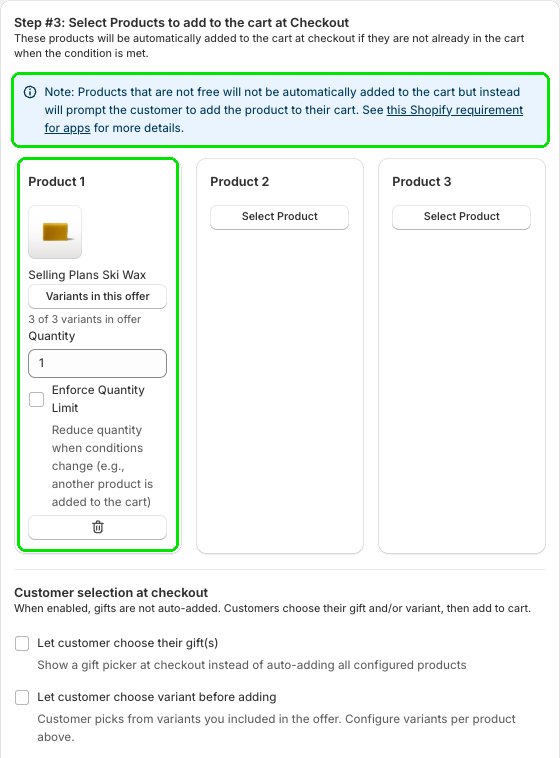
Under Step #3: Select Products to add to the cart at Checkout, select Select Product and choose the same gift you picked in Discount Plus.
Turn on the key setting
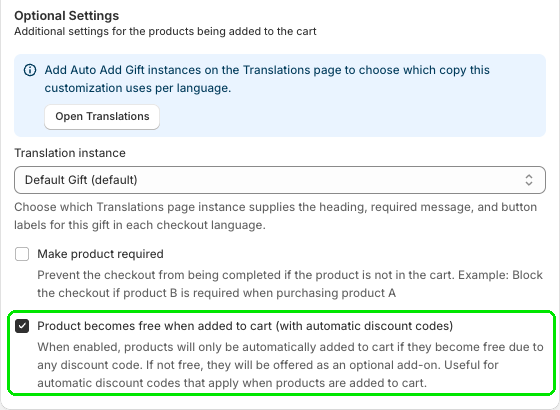
Under Optional Settings, check Product becomes free when added to cart (with automatic discount codes), then save. This is what ties the two apps together: the gift is only added automatically when the discount code makes it free. If it isn't free, it's offered as an optional add-on instead.
Step 3: Add the block to your checkout
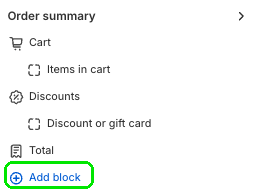
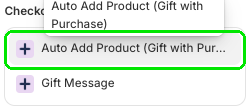
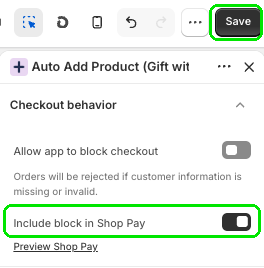
In the Shopify Checkout Editor, under Order summary, select Add block. Search gift and pick Auto Add Product (Gift with Purchase) under Checkout Plus. Optionally turn on Include block in Shop Pay, then select Save.
Step 4: Test it
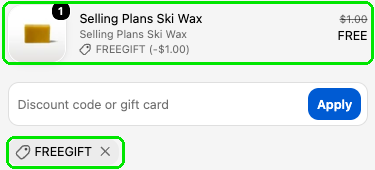
Enter your code at checkout. The gift drops into the order marked FREE. Remove the code and the gift goes with it.

Quick troubleshooting
- No gift at all? Check that you're on Shopify Plus, both apps are installed, and the block is added and saved in the Checkout Editor.
- Gift offered instead of added? It isn't free yet. Make sure the codes match exactly and the same product is picked in both apps.
- Gift stays after the code is removed? Check the remove gift options in Checkout Plus.
Want the full click by click version? See our help guide, or watch the video walkthrough.
Ready for BFCM? Install Checkout Plus and Discount Plus from the Shopify App Store.