

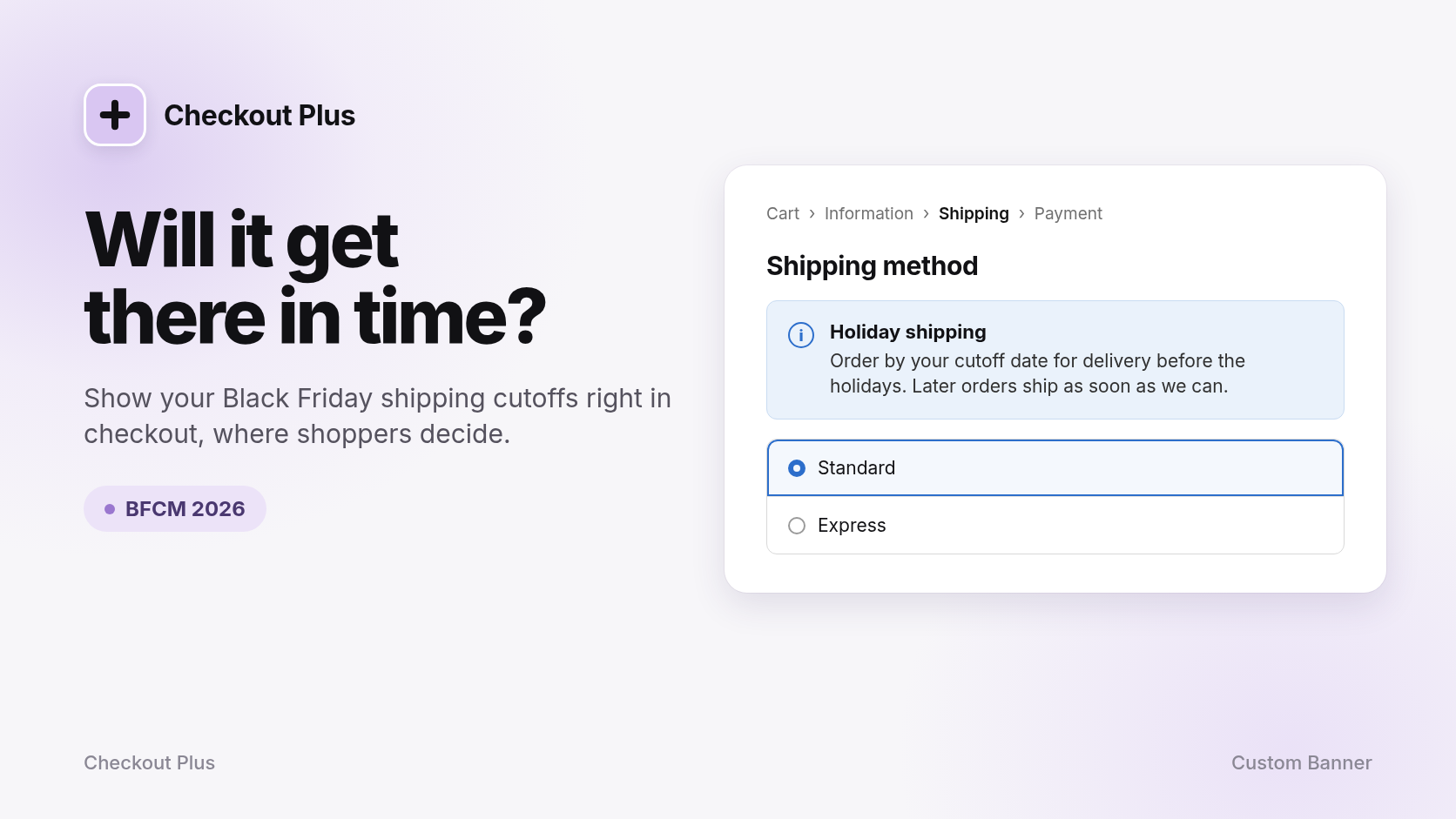
Black Friday 2026 lands on Friday, November 27, and Cyber Monday follows on November 30. A lot of what people buy that weekend are gifts, which means one question sits in the back of every shopper's mind at checkout: will this get here in time?
If they can't find the answer, some will open a new tab to hunt for your shipping page, and some won't come back. A short, clear shipping cutoff message right in checkout answers the question where they're deciding. This guide covers why that works, what to say, and how to set it up with a Checkout Plus Custom Banner.
Why shipping cutoffs belong in checkout
- It answers the question at the right moment. Shoppers think about delivery when they pick a shipping method, not when they're browsing your homepage banner.
- It sets honest expectations. Telling people up front which orders make it before the holidays beats apologizing in late December.
- It cuts down on support emails. A matching note on the Thank you and Order status pages answers "when will my order ship?" before anyone has to ask.
- It adds real urgency. A true cutoff date is a reason to order today that doesn't need any hype.
Where to show your cutoff message
In checkout
Put the banner on the step where shoppers think about delivery, like the Information step near the shipping address. Checkout page banners need Shopify Plus.

On the Thank you page
Right after they buy, confirm what happens next, like when holiday orders ship and that tracking is on the way. This page works on all Shopify plans.
On the Order status page
Shoppers come back here to check on their order, so it's a great spot to repeat your shipping timeline. It also works on all Shopify plans.

What to say in your shipping cutoff banner
Keep it to one or two lines. A few examples you can adapt (swap in your own dates):
The simple cutoff
"Black Friday Sale! Order Before November 25th to get your order on time!" Swap in your own date. Short, clear, and easy to scan on a phone.
The cutoff with a backup plan
"Order by [date] for holiday delivery. Missed it? Grab a gift card instead." Handy once the standard cutoff is close, if you sell gift cards.
The express nudge
"Standard shipping cutoff has passed. Choose express by [date] to get it in time." Only use this if your express option really makes it.
The post-purchase note
"Your Order is estimated to arrive before November 25th." Swap in your own date. Perfect for the Thank you and Order status pages.
How to set up a shipping cutoff banner in Checkout Plus
Here's the quick version. For every click and setting, follow our help guide: How to Show Black Friday Shipping Cutoffs at Checkout with Checkout Plus.
Step 1: Open Custom Banner Message
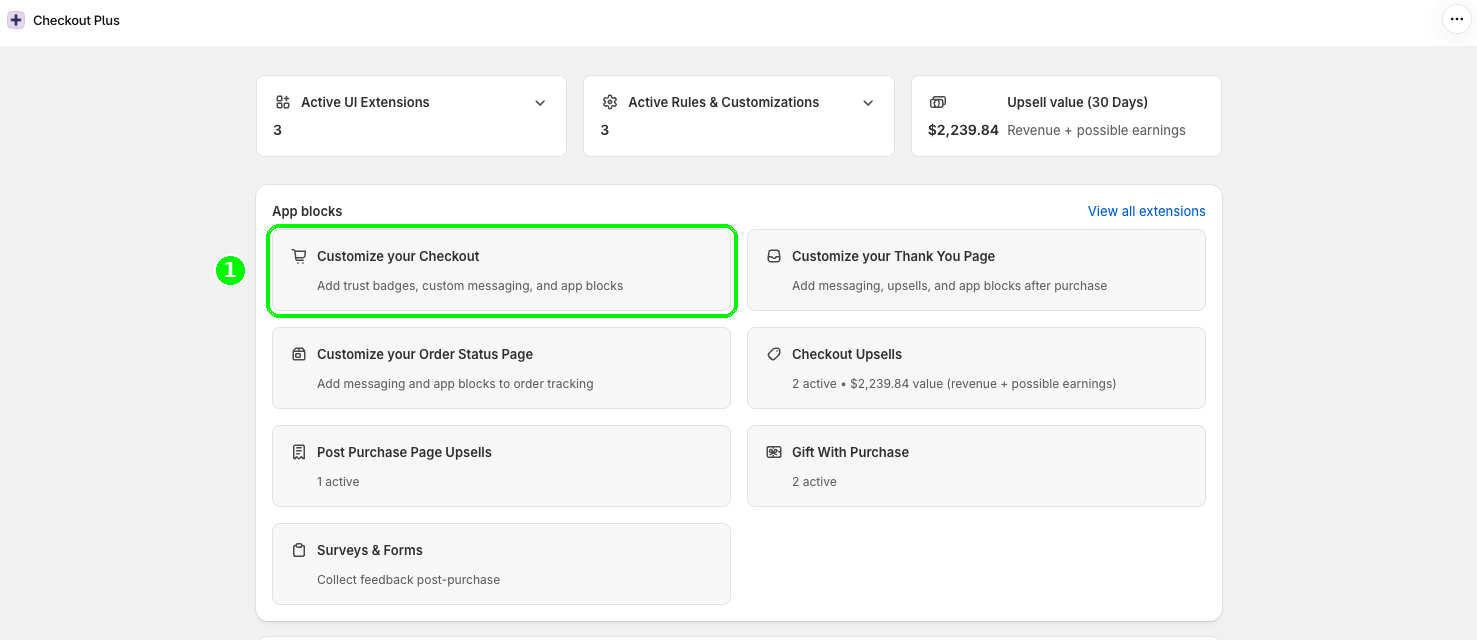
In your Shopify admin, open Apps and then Checkout Plus. Under App blocks, select Customize your Checkout. Search for banner, find Custom Banner Message, and select Manage.
Step 2: Write your message in a profile
In Custom Banner Advanced Settings, pick a profile under Editing Profile. You get 5 independent profiles, so you can keep your shipping message separate from any sale banner. Add a Banner Title like "Holiday shipping", write your cutoff in Banner Message, pick a Banner Style (Color), and select Save.
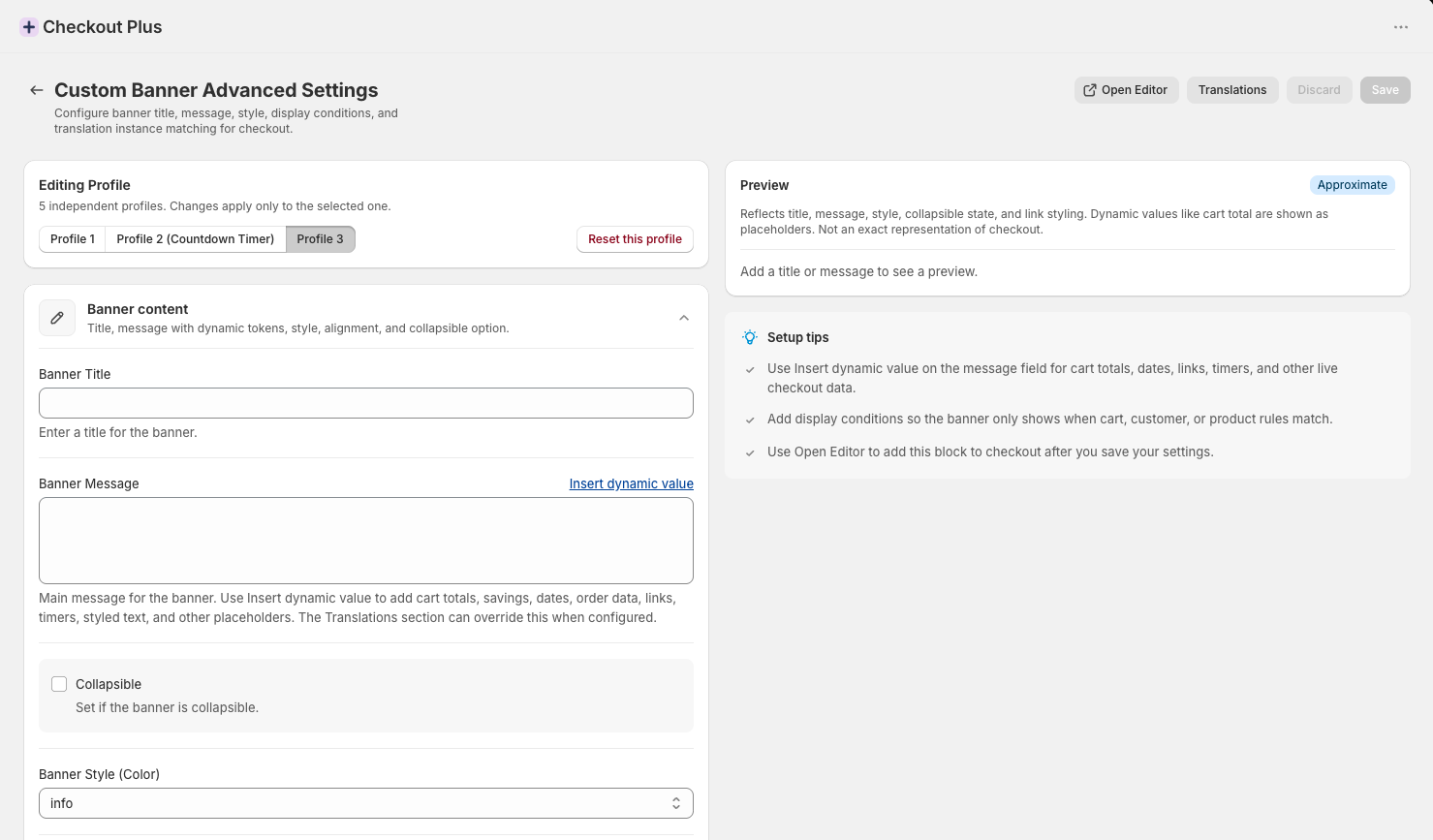
Want the banner to show only when the cutoff applies? Back in the same profile, you can add display conditions so the banner only shows when cart, customer, or product rules match. Select Add condition, then pick a rule from the dropdown. For shipping cutoffs, these are the most useful:
- Selected Shipping Method: show the cutoff only for the shipping method it applies to, like your standard option.
- Selected Delivery Type: show it for shipped orders, so local pickup shoppers don't see a delivery date.
- Shipping Country Code or Shipping Country Code is Not: show different cutoffs for domestic and international orders.
- Shipping State/Province Code: handle regions that need extra transit time.
- Market: show a cutoff only in the market it applies to, if you sell in more than one.

Need a different cutoff for each region or shipping method? Use a separate profile for each one, each with its own conditions, and add a Custom Banner block for each profile in the next step. Select Save again when you're done.
Step 3: Add the Custom Banner block in the Checkout Editor
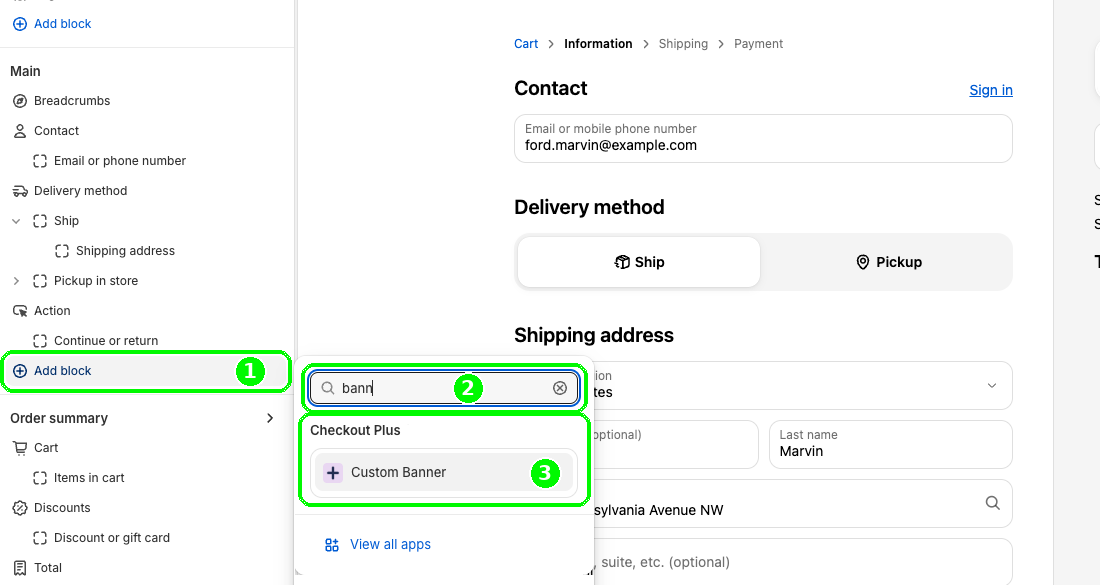
In the Checkout Editor, go to the step where you want the message. Under Main, select Add block, search for banner, and choose Custom Banner under Checkout Plus. In the block settings, set Custom Banner Settings Profile to your shipping profile, turn on Include block in Shop Pay if you want Shop Pay buyers to see it, and select Save.
Step 4: Add a note after purchase
Set up your post-purchase message in another profile. Then, in the Checkout Editor, switch to the Thank you page (and the Order status page), add the same Custom Banner block, and pick that profile.

Step 5: Test it
Go through checkout on mobile and desktop, place a test order, and check the Thank you and Order status pages too.
Tips for a smoother holiday shipping season
- Use real dates only. Check your carriers' published holiday deadlines and add your own processing time before you name a date.
- Update it the day a cutoff passes. Edit the profile's Banner Message and save, or switch the block to a profile you set up ahead of time.
- Link to the details. Add a link to your full shipping policy with clickable banner links.
- Pair it with a sale deadline. Running a timed offer? Add a countdown timer banner in its own profile.
- Translate it. Selling in more than one language? Make sure your cutoff message is translated too.
Common questions
Do I need Shopify Plus?
Only for the banner on the checkout page itself. The Thank you and Order status pages work on all Shopify plans.
Can I show the banner only for some orders?
Yes, in two ways. In the Checkout Plus app, use Add condition on your banner profile to pick rules like Selected Shipping Method, Selected Delivery Type, Shipping Country Code or Shipping Country Code is Not, Shipping State/Province Code, and Market. In the Checkout Editor, the block settings also have Show Banner Based On, which shows the banner only when a condition you pick matches. Whichever you use, test a cart that matches and one that doesn't.
Will Shop Pay buyers see it?
Turn on Include block in Shop Pay in the block settings, then save.
Can I run a shipping banner and a sale banner at the same time?
Yes. Put each one in its own profile and add a Custom Banner block for each, so every message stays short and focused.
Wrapping up
A shipping cutoff banner is one of the easiest BFCM wins: it answers the question shoppers already have, at the moment they have it. Write it in a Custom Banner profile, place it in checkout and after purchase, and keep the dates current. For the rest of your prep, check our Black Friday merchant checklist.
Ready to try it? Install Checkout Plus from the Shopify App Store.