

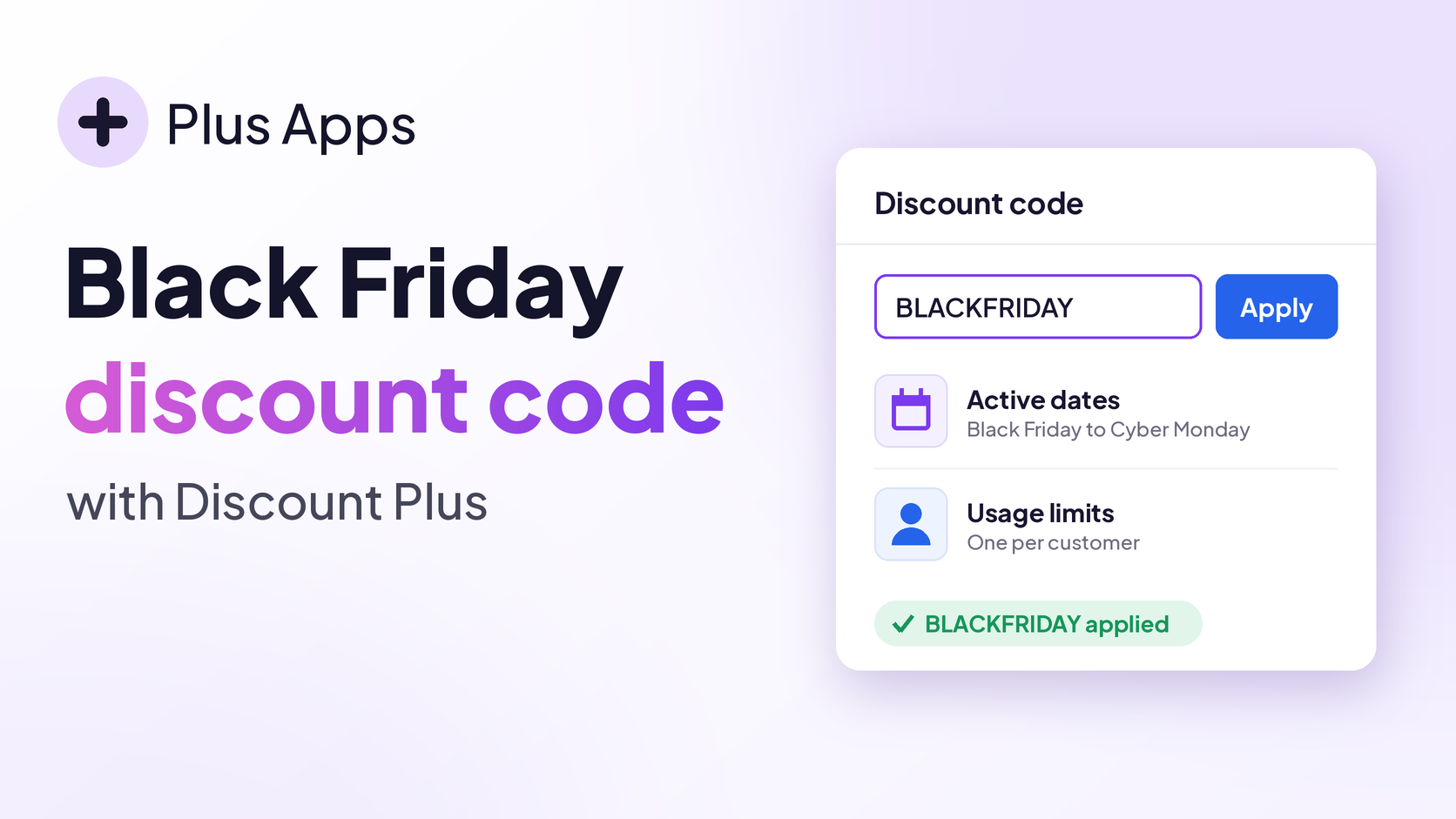
Black Friday 2026 lands on Friday, November 27, and Cyber Monday follows on November 30. If you're planning a Black Friday discount code on Shopify, now's the perfect time to set it up, so it's tested and ready long before the rush.
In this guide, we'll create a code like BLACKFRIDAY with Discount Plus, choose what it takes off, decide who can use it and how often, and schedule it to run only during your sale.
Why discount codes work so well for Black Friday
- They're easy to share. One short code fits in an email subject line, a text, or a social post.
- You can see what worked. You know exactly how many people used each code, so you can tell which channel pulled its weight.
- You stay in control. Cap the total uses, limit it to one per customer, or keep it to a certain group of shoppers.
- They run on a schedule. Set start and end dates, and the code switches on for Black Friday and off after Cyber Monday without you staying up at midnight.
Still deciding between codes, tiers, and BOGO? Our BFCM discount strategy guide covers when each one makes sense.
Before you start
- Discount Plus installed on your Shopify store
- Working on a development or staging store? Discount Plus is free on development and staging stores. Here's how to get the free Staging & Dev plan.
- Your offer written out, like "20% off everything with code BLACKFRIDAY"
- Your sale dates, so the code turns on and off on time
This guide uses a Standard Discount code from start to finish.

Step 1: Create a Standard Discount
In Shopify admin, open Apps → Discount Plus. Under Discount Types, select Create on Product Discounts.
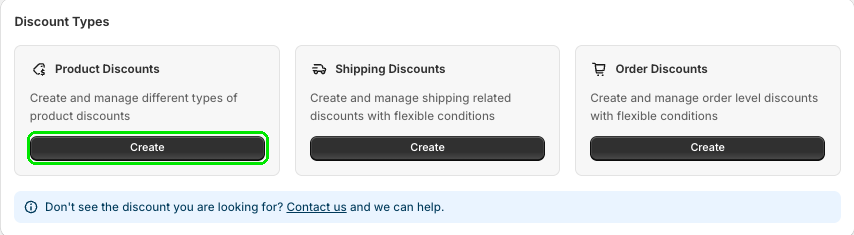
In the Create Product Discounts dialog, select Create next to Standard Discount.

Step 2: Set up your Black Friday discount code
Name the code
Under Step 1: Basic Information, pick the Discount code tab. Enter a Discount Title. It's just for internal reference, and if you leave it blank, the discount code is used as the title.
Then enter your Discount Code, like BLACKFRIDAY. Customers must enter this code at checkout. Want something unique? Select Generate random code.
Need lots of codes?
If you want one code per influencer or channel, check Generate multiple discount codes to create multiple separate discounts with different codes at once.
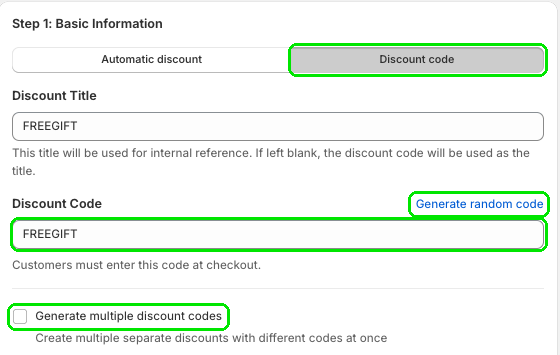
The screenshot shows a sample code. Use whatever code fits your sale.
Step 3: Choose what the code takes off
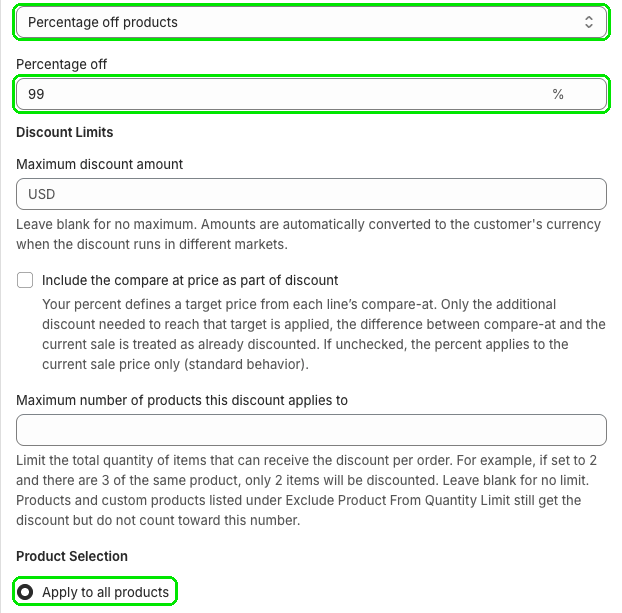
- Pick a Discount type, like Percentage off products.
- Enter the Percentage off.
- Optional: under Discount Limits, set a Maximum discount amount or a Maximum number of products this discount applies to.
- Under Product Selection, keep Apply to all products for a store wide sale, or narrow it down.
Step 4: Decide who can use it and how often
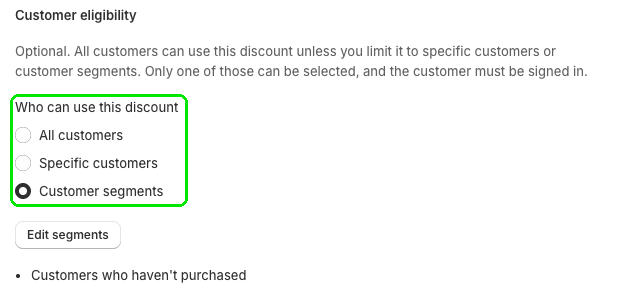
Customer eligibility
Under Customer eligibility, choose All customers, Specific customers, or Customer segments. Limiting it means the customer must be signed in.
Usage limits
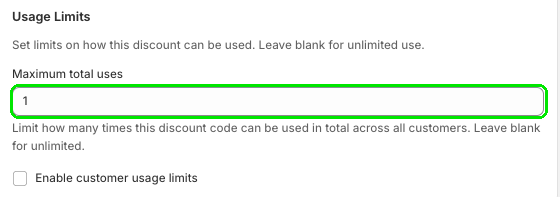
Under Usage Limits, set Maximum total uses to cap how many times the code can be used across all customers. Leave it blank for unlimited.
Want a one per customer rule? Check Enable customer usage limits. Our usage limits guide has the details.
Step 5: Set your sale dates and stacking
Active dates
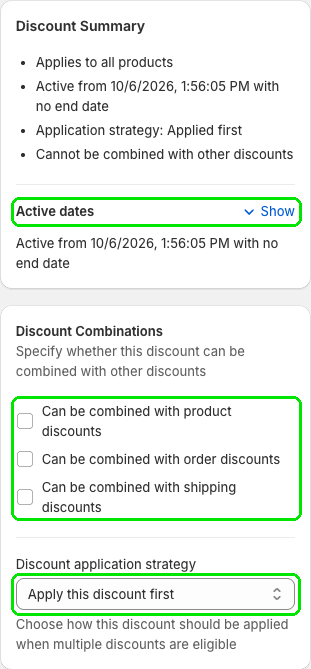
Next to Active dates, select Show and set when the code starts and ends, so it switches on for Black Friday and off after Cyber Monday.
Combinations and application strategy
Under Discount Combinations, choose whether the code can be combined with product, order, or shipping discounts. If more than one discount could apply, use Discount application strategy (like Apply this discount first) to pick how this one is applied.
Then check the Discount Summary to make sure everything looks right.
Step 6: Save and test your code
Select Save in the Unsaved changes bar.

Now give it a quick test run:
- Add a product to your cart, go to checkout, and enter your code in Discount code or gift card.
- Check that the discount shows up and that it stacks (or doesn't) the way you set it.
- Try it on mobile and desktop.
Common questions
Can I make a different code for each channel?
Yes. Check Generate multiple discount codes to create multiple separate discounts with different codes at once. It's a nice way to see which email, text, or partner drove the most orders.
Can the code turn on by itself on Black Friday?
Yes. Set the start and end under Active dates and the code only works during that window.
Tips for a smooth Black Friday code
- Keep the code short and easy to type, like
BLACKFRIDAYorBFCM. - Create and test your code a couple of weeks before Black Friday, then let Active dates switch it on.
- Use Maximum total uses if you want a "first come, first served" offer.
- Running other discount apps? See Can I Use Discount Plus with Other Discount Apps?
Troubleshooting
The code doesn't work at checkout
Make sure today is within the Active dates, the code is typed exactly right, and Maximum total uses hasn't been reached.
Some customers can't use it
Check Customer eligibility. If it's limited, the customer has to be signed in.
It won't stack with another discount
Review Discount Combinations and Discount application strategy on both discounts.
Need help? Message us from the app (click Contact us under Discount Types) and tell us what Black Friday offer you're setting up.
Wrapping up
A good Black Friday discount code is short, scheduled, and capped the way you want. Set it up now, test it, and let Active dates do the rest on the big day. For the rest of your prep, check our Black Friday merchant checklist.
Ready to try it? Install Discount Plus from the Shopify App Store.