


Black Friday 2026 lands on Friday, November 27, and Cyber Monday follows on November 30. Your discounts are the headline of that weekend, so it pays to plan them before the rush instead of building them at midnight.
The good news? You don't need a dozen offers. Most strong BFCM promos come down to three tools used well: tiered discounts that reward bigger carts, BOGO offers that move more units, and usage limits that keep a great deal from turning into a margin problem. This guide walks through each one, the Shopify rules to know first, and how to set them up with Discount Plus.
Start with one hero offer
Before you open any app, write your main offer in one plain sentence a shopper would get instantly. Something like "buy more, save more on everything" or "buy 2 hoodies, get a beanie free." If you can't say it in one line, shoppers won't get it in one glance either.
Then answer three quick questions:
- What is the goal? Bigger carts point to tiers. Moving specific stock points to BOGO. Rewarding a group of shoppers points to eligibility rules.
- What can your margin handle? Check the deepest discount any single cart could get, including stacking, before you go live.
- Who should get it? Everyone, a customer segment, or a capped number of redemptions.
Want the full prep list (promo rules, checkout trust, QA, and a soft launch)? Our Black Friday merchant checklist pairs nicely with this guide.
Know Shopify's discount rules before you build
A few Shopify basics shape every BFCM plan, no matter which app you use:
- Three discount classes. Every discount is a product discount, an order discount, or a shipping discount, and you choose which classes each one can combine with (Shopify Help Center).
- 25 active automatic discounts max. That total includes app-based discounts, so plan your BFCM lineup with that ceiling in mind (Shopify Help Center).
- Code limits per order. Customers can use up to 5 product or order discount codes and 1 shipping discount code on the same order, when the discounts are set to combine (Shopify Help Center).
- Native Buy X Get Y never adds the free item for the shopper. With Shopify's built-in Buy X Get Y, customers have to add both the buy and the get items to the cart themselves (Shopify Help Center). Your messaging needs to tell them.
Curious how a dedicated app compares with Shopify's built-in options? Here's our Discount Plus vs Shopify Discounts breakdown.
Strategy 1: Tiered discounts (buy more, save more)
Tiered discounts give shoppers a ladder: the more they buy, the deeper the discount. Each step gives them a reason to add one more item, which is exactly the kind of nudge you want on BFCM weekend.
When tiers work best
- Products people buy in multiples (consumables, basics, gifts for several people)
- Sitewide or collection-wide sales where you want bigger carts, not just more orders
- Stores that want one clear offer instead of a pile of codes
How to set up a tiered discount in Discount Plus
- In your Shopify admin, go to Apps → Discount Plus.
- Under Discount Types, click Create on Product Discounts.
- In the Create Product Discounts dialog, click Create next to Tiered (Volume) Discount.
- Under Step 1: Basic Information, choose Automatic discount or Discount code, then add a Discount Title and a Discount Message shoppers will see.
- Add your tiers, pick the products or collections they apply to, set your dates, and save the discount.

Per our tiered pricing feature page, tiers can trigger on unit count or cart subtotal, and each tier can use a percentage, a fixed amount, or a fixed price. You'll also spot two related options in that dialog: Progressive Discount, which grants a set number of discounted products at each threshold, and Volume + Buy X Get Y Combo, which pairs a volume discount with a Buy X Get Y on add-on products in one rule.
Tier tips
- Keep it to a few tiers. Shoppers should be able to read the whole ladder in a second.
- Make the first tier easy to reach so more carts get into the game.
- Save the best deal for the top tier, and check that it still works for your margin.
- Show the tiers on product and cart pages so the next step is obvious before checkout.

Strategy 2: BOGO (buy X, get Y)
BOGO is the classic BFCM move. It's easy to understand, it moves more units, and it's great for clearing stock or introducing a second product.
Pick the right BOGO shape
- Same product: buy 2, get 1 free or discounted. Simple and familiar.
- Across collections: buy from one collection, get a reward from another. Our multi-product BOGO page covers collection triggers, cross-collection rewards, and applying the discount to the lowest-priced eligible item.
- Free gift: if the reward is a gift rather than a cheaper item, use the Free Gift type in the same dialog, which offers a free gift when a customer meets certain conditions.
How to set up BOGO in Discount Plus
- Go to Apps → Discount Plus and click Create on Product Discounts.
- In the Create Product Discounts dialog, click Create next to Buy X Get Y (BOGO).
- Choose what shoppers buy, what they get, and whether the get item is free or discounted.
- Add your dates and messaging, then save.
Tip: say exactly what to do in your banner or product copy, like "Add 2 tees and a beanie, the beanie's on us." Shoppers shouldn't have to guess how to unlock the deal.
Strategy 3: Usage limits (so a great deal stays a great deal)
BFCM codes get shared. Usage limits make sure your offer reaches the people you planned for, without surprise costs. Discount Plus gives you a few layers here:
- Customer eligibility. Under Who can use this discount, pick All customers, Specific customers, or Customer segments. Customers need to be signed in for these limits to apply.
- Per-customer limits. Check Enable customer usage limits, then set Maximum number of uses per customer and Maximum total product quantity per customer.
- Guest checkout behavior. Apply discount when customer information is not available lets the discount apply before a guest enters their details, and the limits are still enforced once they do.
- Total redemption cap. A global usage limit caps how many times a discount can be used across all customers, which is handy for "first 100 orders" style offers (V 1.7.0).

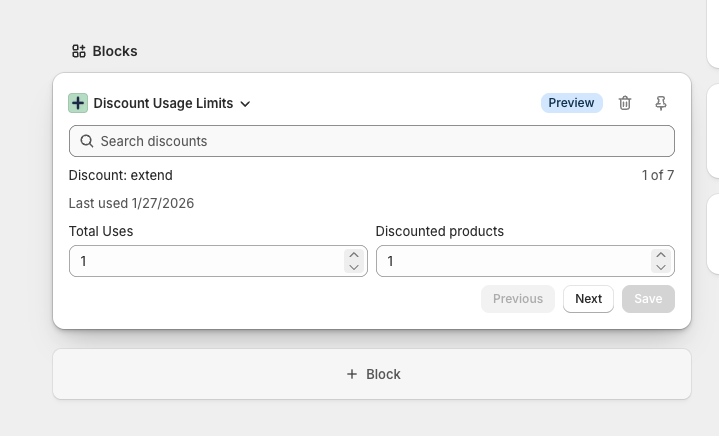
Need to make an exception for one shopper, like a VIP or a support case? The Discount Usage Limits admin block on the Shopify customer page lets you adjust that customer's Total Uses and Discounted products limits, then click Save (V 1.10.0).
Usage limit ideas for BFCM
- One use per customer on your deepest code, so it can't be reused all weekend
- A product quantity cap on doorbuster items so a few carts can't clear your stock
- A total redemption cap for limited drops or early access offers
- A customer segment, like shoppers who haven't purchased yet, for a first order offer
Want the full walkthrough? See How to Set Usage Limits in Discount Plus in our Help Center, or our post on setting usage limits on your Shopify discounts.
Decide what stacks before shoppers do
Stacking is where BFCM margin quietly leaks. A tier, a BOGO, and a sitewide code can all land on the same cart if you let them.
- Under Discount Combinations, choose whether each discount Can be combined with product discounts, Can be combined with order discounts, or Can be combined with shipping discounts.
- Use Discount application strategy (for example, Apply this discount first) to control what happens when more than one discount is eligible.
- Write down your stacking rules (tier + free shipping: yes, BOGO + sitewide code: no) and test a few carts against them.
Our discount stacking page goes deeper, and if you need to keep certain products out of a deal, here's how to exclude collections or products from a discount.
Run BFCM week without the stress
Once your offers are built, a few Discount Plus features make the week itself easier:
- Exact start and end times. Set the time, not just the date, so your sale goes live right when your emails do (V 1.4.0).
- Background bulk updates. Bulk creating and bulk editing discounts runs in the background and finishes faster, so you can keep working while big batches process (V 1.11.0).
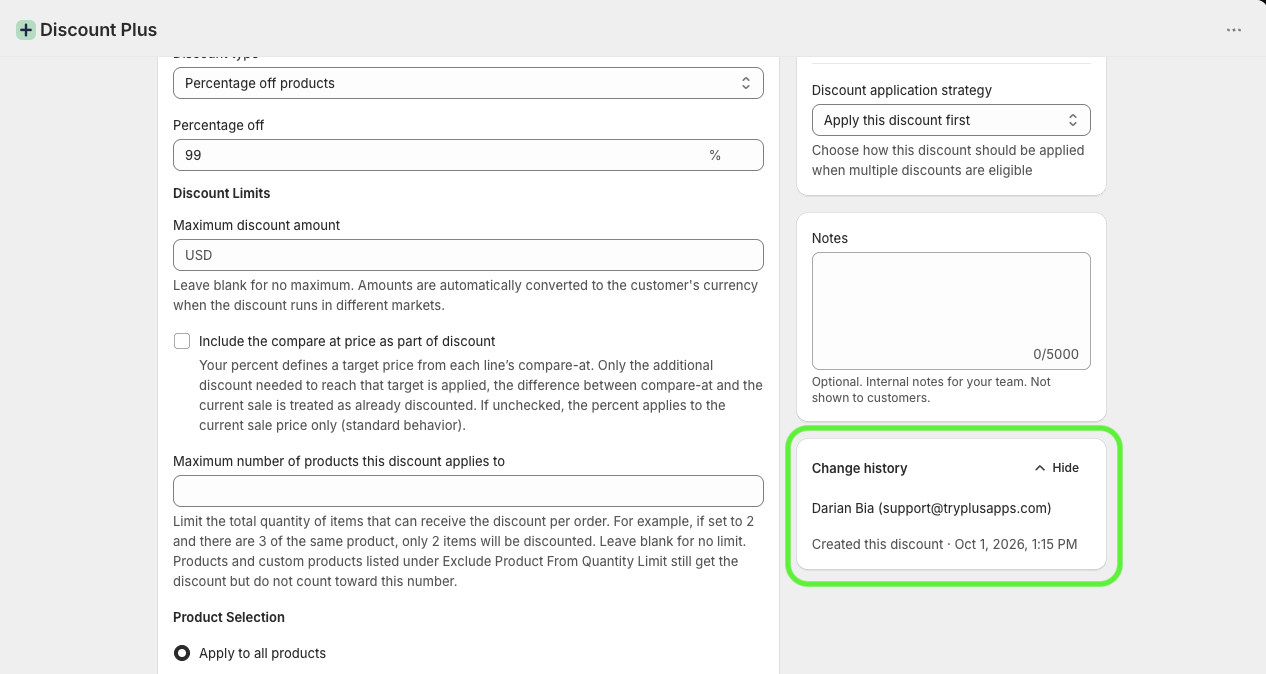
- Change History. See who created or changed a discount, and when, right in the discount editor sidebar (V 1.8.0). Super useful when a few teammates are editing on the same busy weekend.
- Quick on and off. You can bulk toggle discounts between Active and Inactive from your discount list (V 1.1.0).

Putting it together: a sample BFCM plan
Here's one way the pieces fit. Swap in your own products and numbers.
- Hero offer: a tiered discount across your main collection, so bigger carts save more.
- Add-on offer: a BOGO or free gift on accessories that complement your best sellers.
- Guardrails: one use per customer on your deepest code, a quantity cap on limited stock, and stacking rules you've written down and tested.
- Timing: exact start and end times, a soft launch with test orders, and your team watching Change History during the weekend.
BFCM traffic is heavy, so keep the checkout side simple too. Our post on boosting checkout conversions for BFCM has ideas there.
FAQ
What's the best discount type for Black Friday on Shopify?
It depends on your goal. Tiered discounts are great for growing cart size, BOGO is great for moving units or specific stock, and usage limits protect whichever one you pick. Many stores run one hero offer plus one add-on offer.
How many automatic discounts can I run at once on Shopify?
Up to 25 active automatic discounts, and that count includes app-based discounts (Shopify Help Center).
Can customers use more than one discount code at checkout?
Yes, if the discounts are set to combine. Shopify allows up to 5 product or order discount codes and 1 shipping discount code on the same order (Shopify Help Center).
Does Shopify add the free item to the cart for a Buy X Get Y deal?
Not with Shopify's built-in Buy X Get Y. Shoppers need to add both the buy and get items themselves (Shopify Help Center), so spell out the steps in your promo copy.
How do I stop a BFCM code from being shared everywhere?
Combine a per-customer limit with a total redemption cap, and limit eligibility to specific customers or segments if the offer is meant for a certain group. In Discount Plus, that's Customer eligibility plus Usage Limits in the discount editor.
Wrapping up
A great BFCM discount plan is simple: one clear hero offer, a tiered or BOGO structure that fits your goal, usage limits that protect your margin, and stacking rules you've actually tested. Build it early, soft launch, and spend Black Friday watching sales instead of fixing promos.
Ready to set up tiers, BOGO, and usage limits for BFCM? Try Discount Plus on the Shopify App Store.