

A single cart total is a solid free gift rule. During Black Friday (November 27 this year), you may want something more specific, like two rules that have to be true together, or a couple of ways a shopper can unlock the same gift.
Checkout Plus auto gifts can now mix AND and OR between conditions, so you're not stuck using just one for every condition. You add each condition, set its Condition Type, Condition Operator, and Condition Value, then pick AND or OR in the dropdown between them.
Here's how to set that up and test it before the sale.

What you'll need
- Checkout Plus installed on your Shopify store
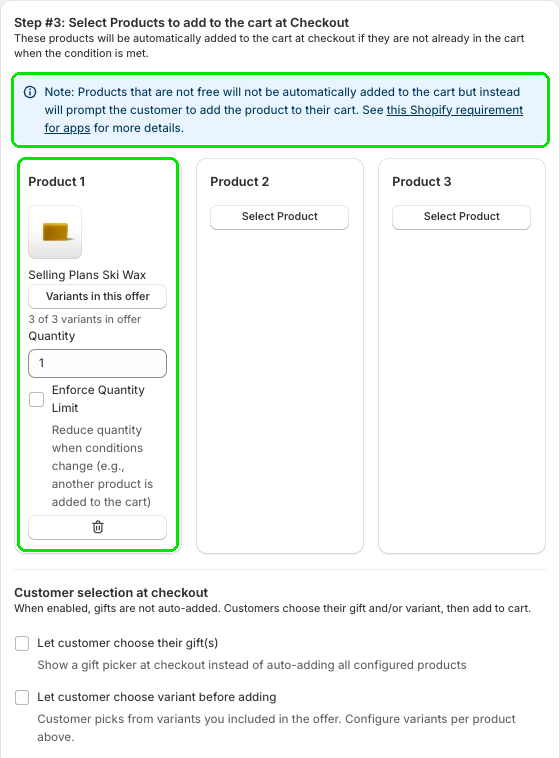
- Your gift product set up in Shopify, with enough inventory for the weekend. The gift needs to be free at checkout. Products that aren't free won't be added automatically. The customer is prompted to add them instead.
- A few minutes to test checkout
How to mix AND and OR conditions on an auto gift
Step 1: Open the Auto Add editor
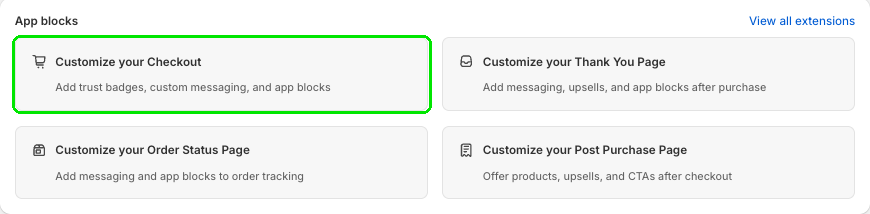
In your Shopify admin, open Apps and then Checkout Plus. Under App blocks, select Customize your Checkout.
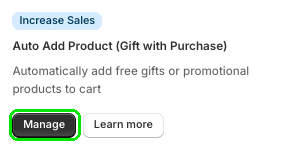
Open Auto Add Product (Gift with Purchase) and select Manage, then create a customization to open the Auto Add Gift/Product To Cart Editor.

Step 2: Add your conditions and pick AND or OR
Under Step #1: Name Your Customization, enter a Customization Name. Customers won't see this.
Under Step #2: Condition To Add Product to Cart, open Select Condition and pick Multiple Conditions (AND/OR).
Select Add condition to add another condition. For each condition, set Condition Type, Condition Operator, and Condition Value. In the example, both conditions use Cart Total, with Condition Operator set to is greater than. Enter your own value in Condition Value.
Use the dropdown between conditions to pick AND or OR. AND means both conditions must be met. OR means either condition can be met. Need another condition? Select Add condition again. You can pick AND or OR between each pair, so you're not stuck using just one for every condition.
If a condition is based on an amount, you can check Convert amount to the customer's currency. It's off by default. If one of your conditions uses Cart Total, add the gift under Excluded products so it doesn't count toward the total. Keep Remove gift from cart when condition is not met (recommended) and Only remove if added by this app checked, so the gift leaves the cart if the shopper no longer meets your rules.
Step 3: Pick the gift and save
Under Step #3: Select Products to add to the cart at Checkout, select Select Product and choose your gift. Optional: use Variants in this offer, Quantity, and Enforce Quantity Limit to fine tune it. Want shoppers to pick? Under Customer selection at checkout, check Let customer choose their gift(s) or Let customer choose variant before adding.
In the Summary, make sure Status is Active, then select Save.
Step 4: Add the block and test
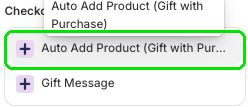
In the Checkout Editor, under Order summary, select Add block, search gift, and under Checkout Plus pick Auto Add Product (Gift with Purchase). Optional: under Checkout behavior, turn on Include block in Shop Pay. Then select Save.
Go to checkout with a cart that meets your conditions, and confirm the gift is added and marked FREE. Then try a cart that doesn't meet them. If you used AND, both conditions have to be true. If you used OR, either condition is enough. Check desktop and mobile.

Tips
- Name it clearly. A clear Customization Name makes the gift easier to find later, especially if you run more than one offer over the weekend.
- Schedule it for the sale. Want the gift to turn on and off by itself? Use Schedule with Go live (Start) and End. See How to Schedule a Black Friday Free Gift for Bigger Carts with Checkout Plus.
- Limit who sees it. Use Customer eligibility to choose All Customers, B2B, or Non-B2B.
- Stop free gift leaks. To block checkout when a shopper adds more than one of the gift, see Prevent Free Gift Leaks by Using Order Validations.
Troubleshooting
The gift isn't showing at all
Check that the customization's Status is Active, and that the Auto Add Product (Gift with Purchase) block is added and saved in the Checkout Editor. Confirm the cart actually meets your conditions, including whether you used AND or OR. If Schedule is on, make sure you're between Go live (Start) and End.
Customers are asked to add the gift instead of getting it automatically
The gift isn't free. Products that aren't free are offered to the customer instead of being added.
The gift shows up when it shouldn't
Check each condition's Condition Type, Condition Operator, and Condition Value, and the AND or OR dropdown between them. If a condition uses Cart Total, add the gift under Excluded products.
The gift stays after the conditions are no longer met
Check that Remove gift from cart when condition is not met (recommended) is checked.
Wrapping up
A more specific free gift is easier to set up than it sounds. Add your conditions, pick AND or OR between them, save, and test one cart that should get the gift and one that shouldn't. Do that before Black Friday (November 27), and you'll know the offer behaves the way you want when orders pick up.
Ready to try it? Install Checkout Plus from the Shopify App Store.