

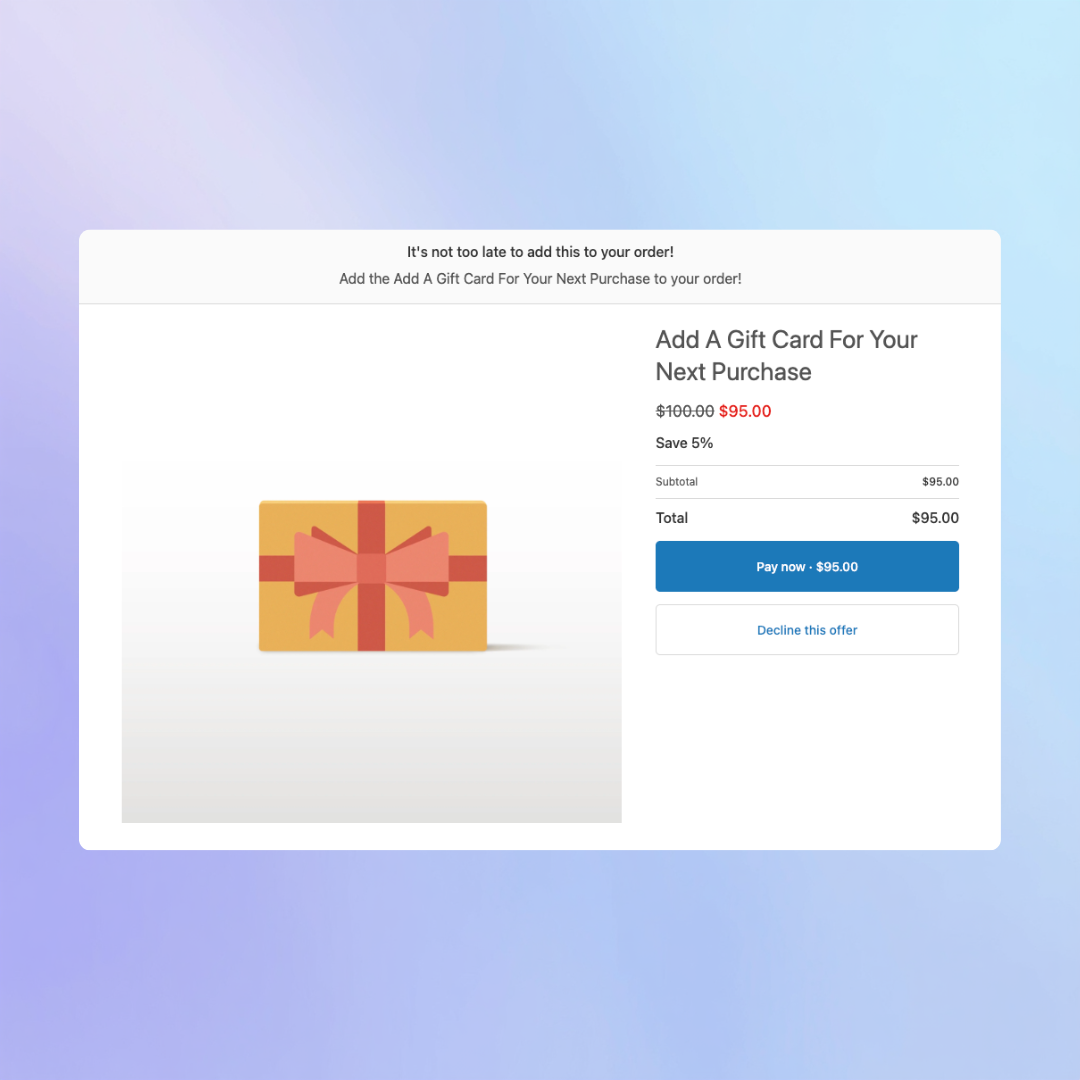
How to Offer Products (Upsells) on the Post Purchase Page on your Shopify Store

Increasing your average order value does not have to happen at checkout. One of the most effective strategies is offering upsells on the post-purchase page, when customers have already completed their order and are more likely to add one more item. In this guide, you will learn how to offer products on your Shopify post-purchase page using Checkout Plus. We will walk through how to set up seamless one-click upsells and turn every completed order into an additional revenue opportunity.

Step 1. Create Your Post Purchase Upsell in Checkout Plus

1a.To find where to create your Post Purchase Offer. Select "Post Purchase Upsells" on the Checkout Plus App Home page.
Checkout Plus App Home Page

1b. Create your post purchase upsell configuration and save your changes.
Post Purchase Example Configuration

2. Make sure the "Checkout Plus" app is set to use your post purchase page in the Shopify Settings

2a. Open your Shopify settings and select "Checkout"
Shopify Settings Example
2b. Scroll down until your find the Post Purchase Page section and select "Checkout Plus"
Post Purchase Page App Selection

3. All done! Run a test order and start making sales!

Example of Post Purchase Page Offer

Are you new to Checkout Plus

Try it free now!

Get Started
Get Started
Continue reading