Changelog
Countdown timers in Custom Banner can now change the banner style when the countdown ends, like switching to Critical.
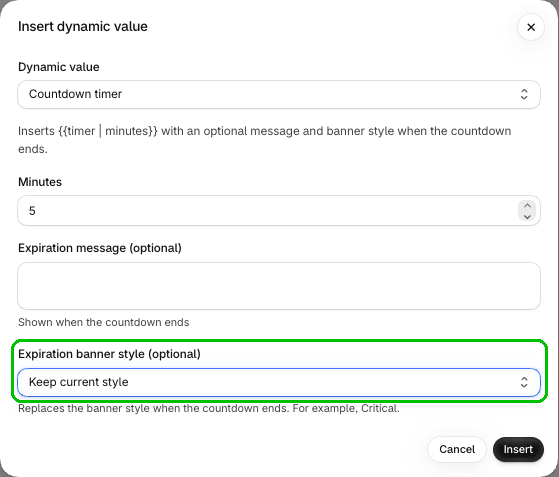
Countdown timers in Custom Banner can now change the banner style when the countdown ends.
In Insert dynamic value, set Dynamic value to Countdown timer and set your Minutes. Then pick a style under Expiration banner style (optional), for example Critical, and click Insert. Want the banner to look the same? Leave it on Keep current style.
Already using an Expiration message (optional)? Now you can pair it with a new banner style, so the message and the look both change when time runs out.
This update is available now in Checkout Plus. Open your Custom Banner, insert a Countdown timer, and pick an Expiration banner style (optional).
Create a custom checkout and show the right message at the right time.
Open Checkout PlusBe the first to know about new features, improvements, and more.
Thanks, you're on the list.
Powerful Shopify apps built to help merchants sell more.