

During Black Friday (November 27 this year), a shopper can apply gift cards until a discounted order is paid off entirely. If you'd rather keep that promo from going through that way, Checkout Rules in Checkout Plus can block checkout when applied gift cards cover the full order total.
This walkthrough focuses on the Paid Entirely with Gift Card condition. Gift Card Amount and Number of Gift Cards are also available if you need a different rule.
Here's how to set that up and test it before the sale.

What you'll need
- Checkout Plus installed on your Shopify store
- A promo or discount you don't want paid off entirely with gift cards
- A few minutes to test checkout
How to block checkout when an order is paid entirely with a gift card
Step 1: Open Checkout Rules
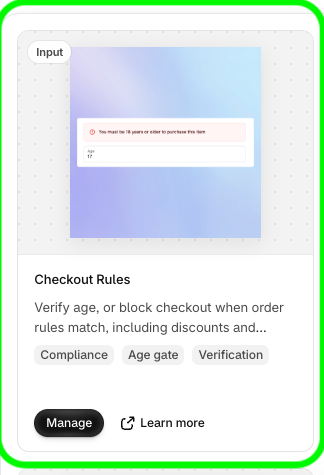
In your Shopify admin, open Apps and then Checkout Plus. Under Available App Blocks for Checkout Page, find Checkout Rules and select Manage.

Step 2: Add the Paid Entirely with Gift Card condition
Open Block conditions, then select Add condition. Open Condition type and pick Paid Entirely with Gift Card.

This condition blocks checkout when applied gift cards cover the full order total. Partial gift card payments are allowed. Shipping must be selected first when the order needs delivery.
Step 3: Set Match logic
Use Match logic to choose how conditions work together. The helper text says checkout is blocked if all conditions match (AND) or if any condition matches (OR). In the screenshot above, Match logic is set to All conditions must pass (AND). If you only have this one condition, that setting is enough.
At the top of Block conditions, the helper text also says checkout is blocked when these conditions match and the discount trigger matches, or always if no discount trigger is set.
Step 4: What the shopper sees
When the conditions match, checkout is blocked and the shopper sees an error at checkout.
[Placeholder for shopper error screenshot. Add a checkout screenshot here once the exact error message is confirmed. Do not invent the message text.]
Test one checkout where gift cards cover the full order total, and one where a gift card only covers part of the total. If the order needs delivery, select shipping first.
Tips
- Partial payments still go through. Paid Entirely with Gift Card only blocks checkout when applied gift cards cover the full order total.
- Select shipping first. If the order needs delivery, shipping must be selected first. The condition can't evaluate the full total until shipping is chosen.
- Other gift card conditions. Gift Card Amount and Number of Gift Cards are also in the Condition type list if you need a different rule.
Troubleshooting
Checkout isn't blocked when gift cards cover the full total
Confirm Condition type is Paid Entirely with Gift Card. If the order needs delivery, select shipping first. If you have more than one condition, check Match logic.
A partial gift card payment is blocked
This condition allows partial gift card payments. It only blocks checkout when gift cards cover the full order total.
I can't find Checkout Rules
On the Checkout Plus home, look under Available App Blocks for Checkout Page, then select Manage.
Wrapping up
Set Condition type to Paid Entirely with Gift Card, check Match logic, and test a full gift card payment against a partial one before Black Friday (November 27). That way you'll know the promo can't be paid off entirely with gift cards when orders pick up.
[Placeholder: link the changelog at /changelogs/checkout-plus-gift-card-conditions-in-checkout-rules after that changelog is published.]
[Placeholder: add the help article URL after the Intercom draft is published.]
Ready to try it? Install Checkout Plus from the Shopify App Store.