


On a phone, Shopify's checkout usually keeps the order summary collapsed. Shoppers have to tap it to see their items, and to enter a discount code or gift card. That extra tap is easy to miss during a busy sale.
There's a built-in Shopify setting that changes this. In the checkout editor, select Order summary and check Always show discount code field. This is a native Shopify setting, so you turn it on in the checkout editor, not in a checkout app.
Before you start
- Access to your Shopify admin, with permission to edit checkout
- A phone, or your browser's mobile view, so you can test the change
How to turn it on
These steps follow Shopify's guide to customizing checkout style, and they match what you'll see in the checkout editor.
Step 1: Open the checkout editor
From your Shopify admin, go to Settings > Checkout. In the Configurations section, click Edit next to the configuration you want to change.

Step 2: Select Order summary
In the checkout and accounts editor, open the Sections sidebar if it isn't already open, then click Order summary in the left sidebar.
Step 3: Check Always show discount code field
In the Order summary settings, check Always show discount code field. The helper text reads "Expand section on mobile to show discount and gift card field." Then click Save in the top right.
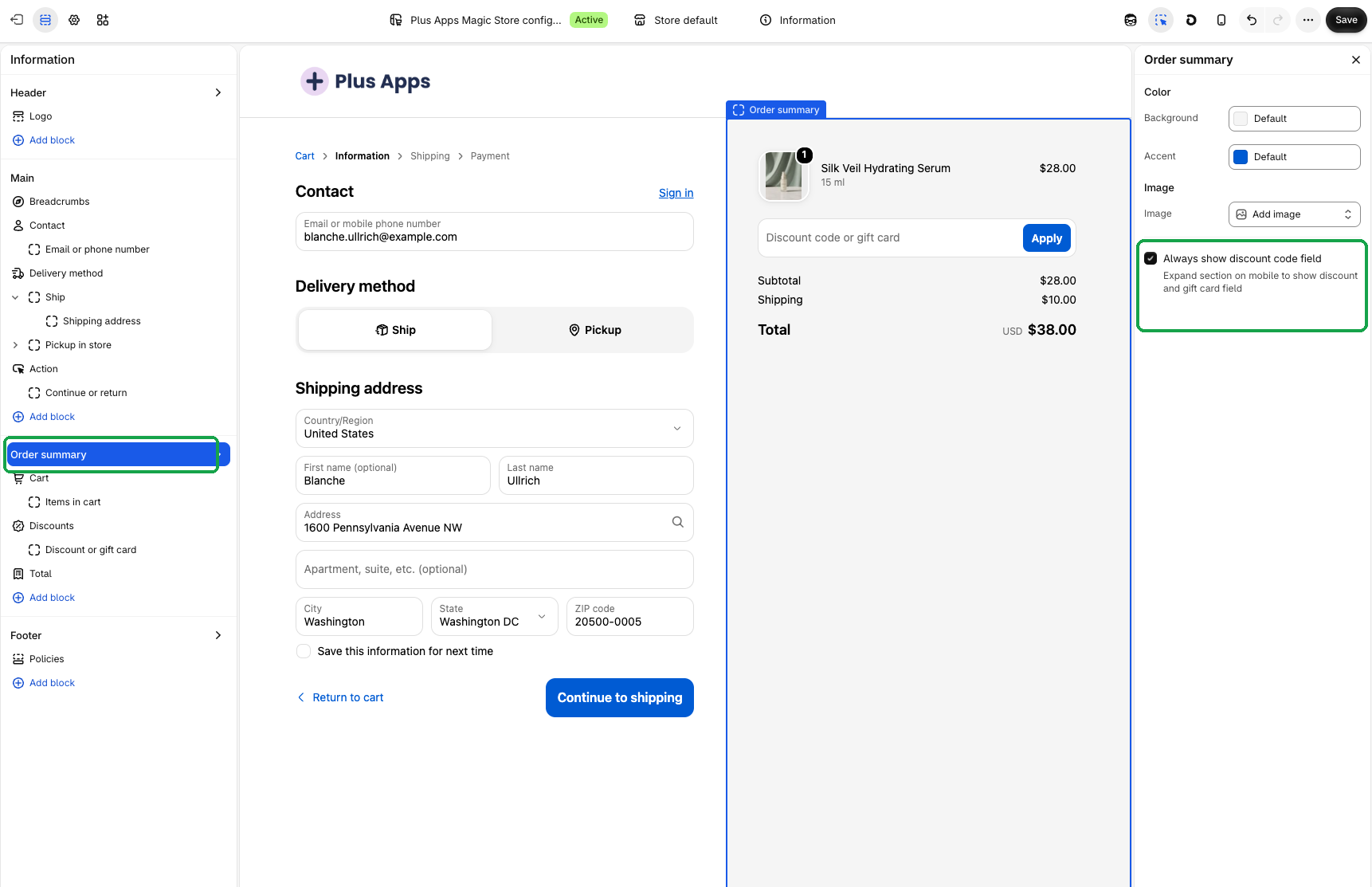
What shoppers will see
Shopify documents two slightly different results, depending on your checkout layout:
- On one-page checkout, the discount field shows above the collapsed order summary on mobile. The item list stays collapsed until the shopper taps it.
- On three-page checkout, the top order summary is expanded by default, so shoppers can see the order summary and the discount field.
Tips
- Test on a phone. Open checkout on your phone after you save, and try adding a discount code or a gift card.
- Edit the right configuration. The change only applies to the checkout configuration you edited. If you use more than one, repeat the steps for each one you want to update.
- Watch the layout. If you use one-page checkout and were hoping the whole order summary would stay open, check Shopify's note above. The setting still makes the discount and gift card field much easier to find.
Troubleshooting
I saved, but mobile checkout looks the same
Make sure you edited the configuration your shoppers actually use, then refresh checkout on your phone. If you made the change on a draft configuration, it won't show on your live checkout until that configuration is the one shoppers use.
The discount field is there, but the items are still hidden
On one-page checkout, Shopify shows the discount field above the collapsed order summary. That's expected. Shoppers can still tap the summary to see their items.
Wrapping up
A single checkbox in Order summary is all it takes to keep the discount and gift card field easier to find on mobile. Turn it on, save, and test it on your phone before your next sale.