


A lot of holiday orders are gifts, and shoppers often look for a way to add gift wrap once they're already in checkout. That's a natural moment to offer it: the order is already on its way to the box, and a simple checkbox is an easy yes.
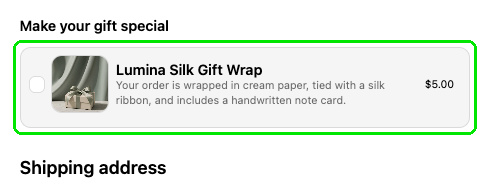
With Checkout Plus, you can add a gift wrap option to Shopify checkout as a checkout upsell. In General, set Layout to Checkbox - With Description. Shoppers tick the box, and your gift wrap product is added to the order. The price comes from the gift wrap product you create in Shopify, so you can set it to $0 or charge for wrap. The $5.00 in the checkout screenshots is just an example. You can also add a gift message with Gift Options.
What you'll need
- Checkout Plus installed on your Shopify store
- A gift wrap product in Shopify, or a few minutes to create one
- A few minutes to test checkout
How to offer gift wrap as a checkbox upsell
Step 1: Create a gift wrap product in Shopify
In your Shopify admin, create a product for gift wrap. Give it a name shoppers will recognize, like Gift wrap, set a price, and make sure it's available to buy. You can set that price to $0, or charge for wrap. The $5.00 in the checkout screenshots is just an example. If you only want to offer it at checkout, you can hide it from your online store so shoppers don't add it from a product page.

Step 2: Create a checkout upsell
In your Shopify admin, open Apps and then Checkout Plus. Under Popular Customizations, select Checkout Upsells, then create a new upsell.
In Step #1: Name Your Upsell, enter an Upsell Name you'll recognize, like Gift Wrap. This is not visible to the customer. In Step #2: Condition To Display Upsell, check Always show this upsell (no conditions) to offer it on every order, or add conditions if you only want wrap on certain carts.
Step 3: Add your gift wrap product
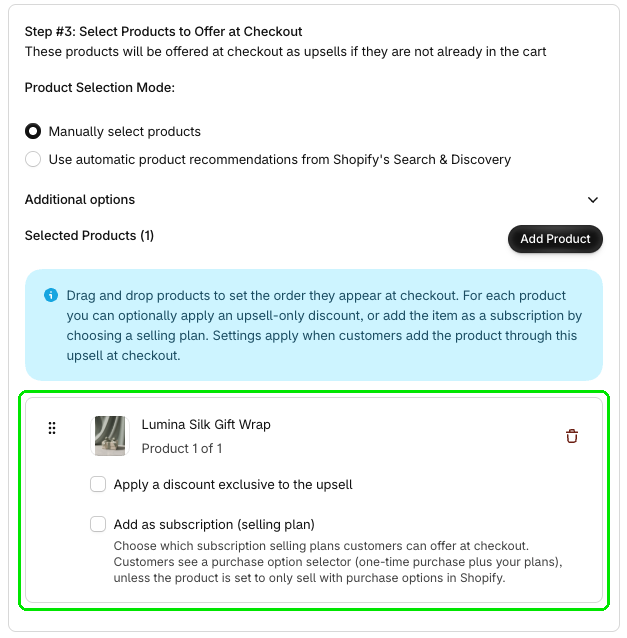
In Step #3: Select Products to Offer at Checkout, under Product Selection Mode, select Manually select products. Click Add Product and add your gift wrap product. Want a holiday price? Check Apply a discount exclusive to the upsell. Without a discount, the shopper pays the product's regular price.
Step 4: Choose the checkbox layout
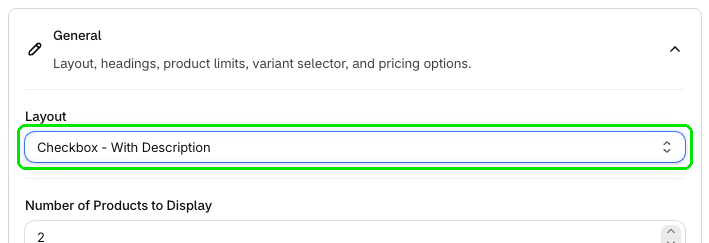
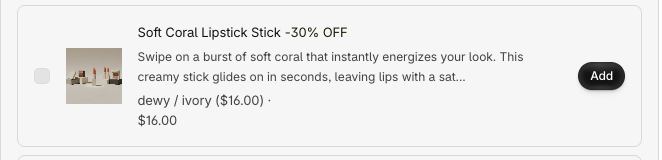
In General, set Layout to Checkbox - With Description. Shoppers see the offer as a checkbox row, which is a good fit for a yes or no add-on like gift wrap.
Here's an example of that layout in the upsell preview. A gift wrap offer will use your gift wrap product instead.
Step 5: Add the block and test
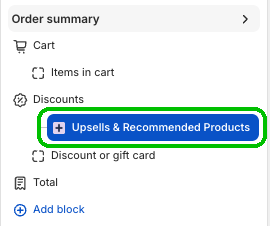
Click Save in the top bar. In your Shopify admin, go to Settings → Checkout and open the checkout editor. Check that the Upsells & Recommended Products block is added, for example in Order summary. Use the block's Heading to make the gift angle clear, like "Make your gift special".
Then add a product to your cart, go to checkout, tick the gift wrap checkbox, and confirm the product is added. Uncheck it, and confirm the product is removed. Try it on desktop and mobile.
Add a gift message
Want shoppers to add a gift message at checkout too? Open Checkout Page App Blocks and find Gift Options under Available App Blocks for Checkout Page. Click Manage to open Gift Options Advanced Settings.
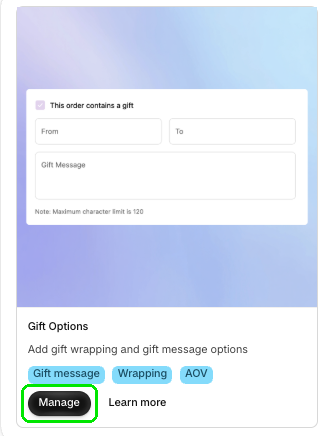
On this page, you can configure gift message style, labels, save location, and optional To/From fields for checkout.
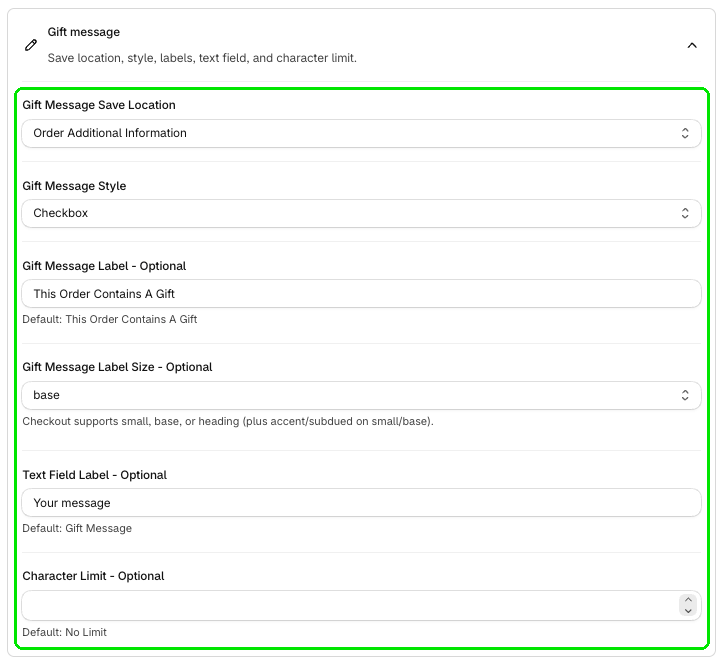
- In Editing Profile, pick the profile you want to edit. There are 5 independent profiles, and changes apply only to the selected one.
- In the Gift message section, set Gift Message Save Location. You can save the message to order additional information or order notes.
- Set Gift Message Style. Style can be checkbox, dropdown, or banner.
- Optionally set Gift Message Label - Optional (default: This Order Contains A Gift) and Gift Message Label Size - Optional. Checkout supports small, base, or heading.
- Optionally set Text Field Label - Optional (default: Gift Message) and Character Limit - Optional (default: No Limit).
- Under Options, you can add optional To/From fields.
- Click Save. Then click Open Editor to add this block to checkout.
Tips
- Keep the heading clear. A short heading like "Make your gift special" tells shoppers why the checkbox is there.
- Always show this upsell (no conditions) shows the offer to everyone. You can add conditions instead if you only want gift wrap on certain carts.
- Unchecking the box removes gift wrap. If a shopper unchecks the gift wrap checkbox at checkout, the product is removed from the order.
- Check your stock. If you're offering gift wrap as a product, make sure it has enough inventory before a busy sale.
- Add the gift message block after you save. In Gift Options Advanced Settings, click Save, then click Open Editor to add the block to checkout.
Wrapping up
Gift wrap is one of the easiest add-ons to offer at checkout, especially during the holidays. Set Layout to Checkbox - With Description, add your gift wrap product, and test it once. Want a gift message too? Open Gift Options from Checkout Page App Blocks, click Manage, save your settings, and use Open Editor to add the block. You're ready for gift season.
Ready to try it? Install Checkout Plus from the Shopify App Store.