




Learn How to Translate Your Checkout Plus App Blocks on the Shopify Checkout and Post Purchase Pages
Learn how to translate your app blocks to provide a better experience to your customers in any location. This tutorial will guide you through creating translations for a single app block or for multiple apps blocks.
This tutorial requires you to have knowledge of How to add Checkout Plus extensions in Shopify's Checkout Editor and to be on the 'Shopify Plus' plan if you plan to place this on the Checkout. All store plans can place this on the 'Thank you' and 'Order Status' pages.
Scenario 1. (Basic) One Instance of the App Block on the Checkout
This scenario is when a there is only one instance of a type of app block being displayed. For example there is only one 'Custom Banner Message' that needs to be displayed and translated.
Steps.
Step 1. Find the app block you want to translate and select "Manage"

Step 2. In the settings of the block select "Translations" at the top of the page

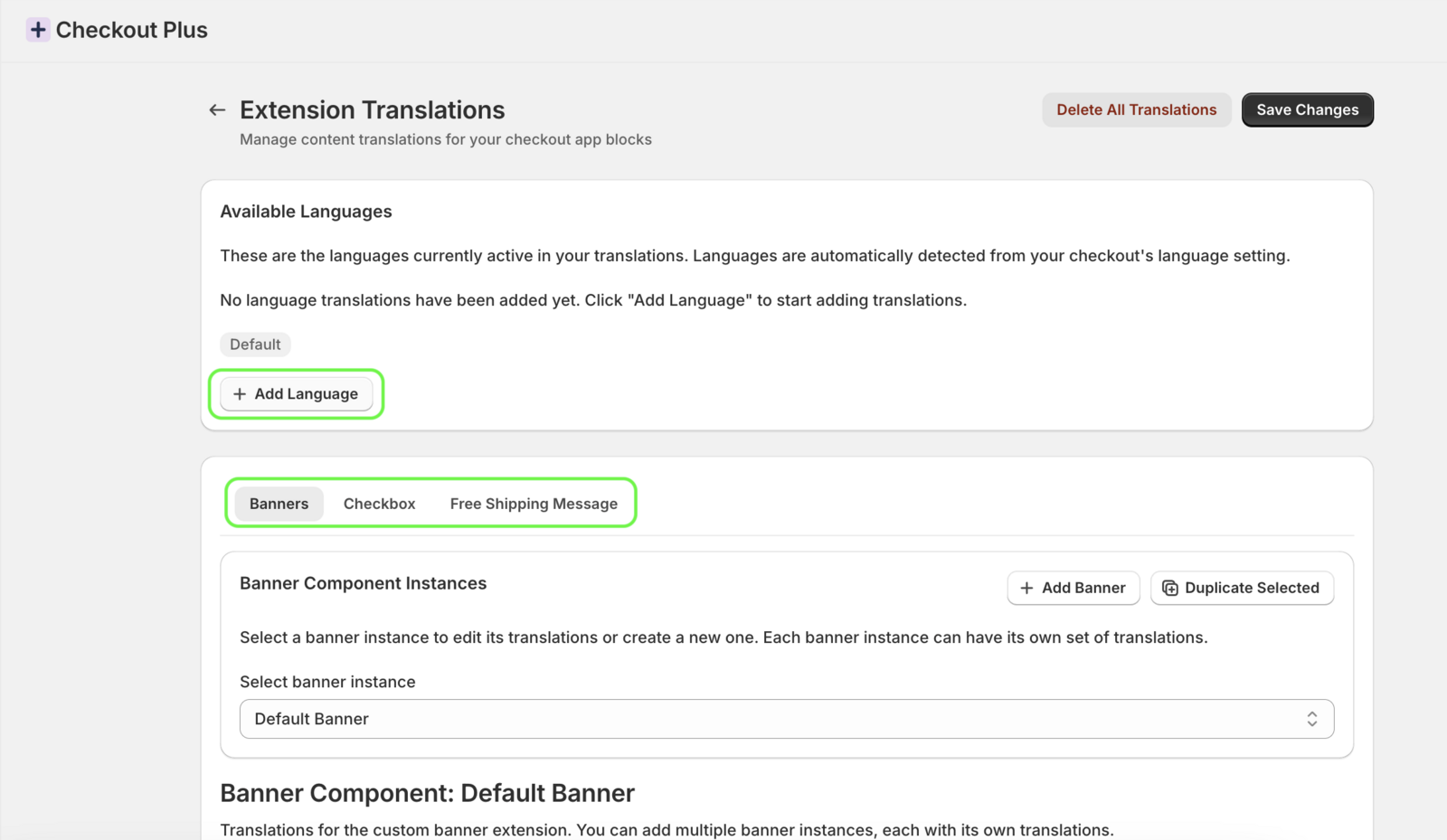
Step 3. Select the Languages and App Block Type to Translate
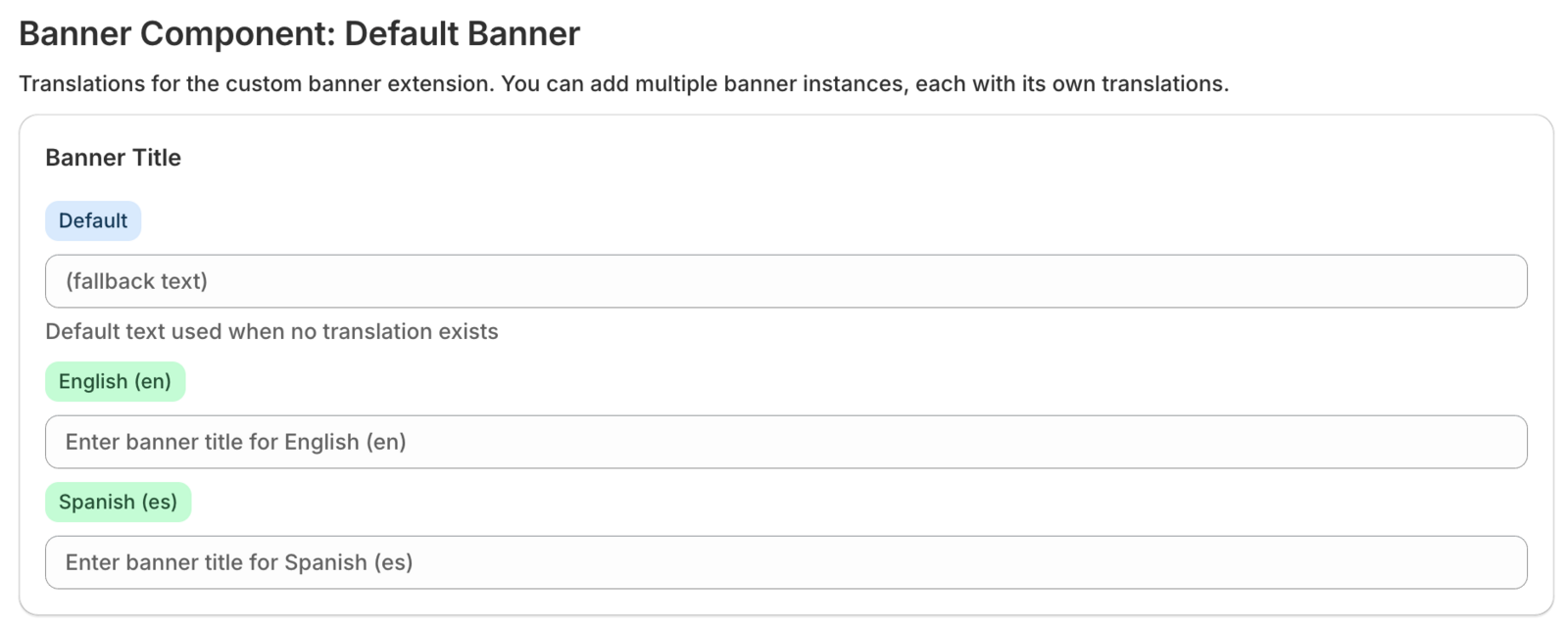
Step 4. Add Translations for each language
Note: The 'Default' fallback is used for when there is a language that is displayed in the Checkout that is not translated so it will use this text as the fallback text.
Step 5. Save the changes and the App Block is now translated!
Scenario 2. Multiple Banner Instances
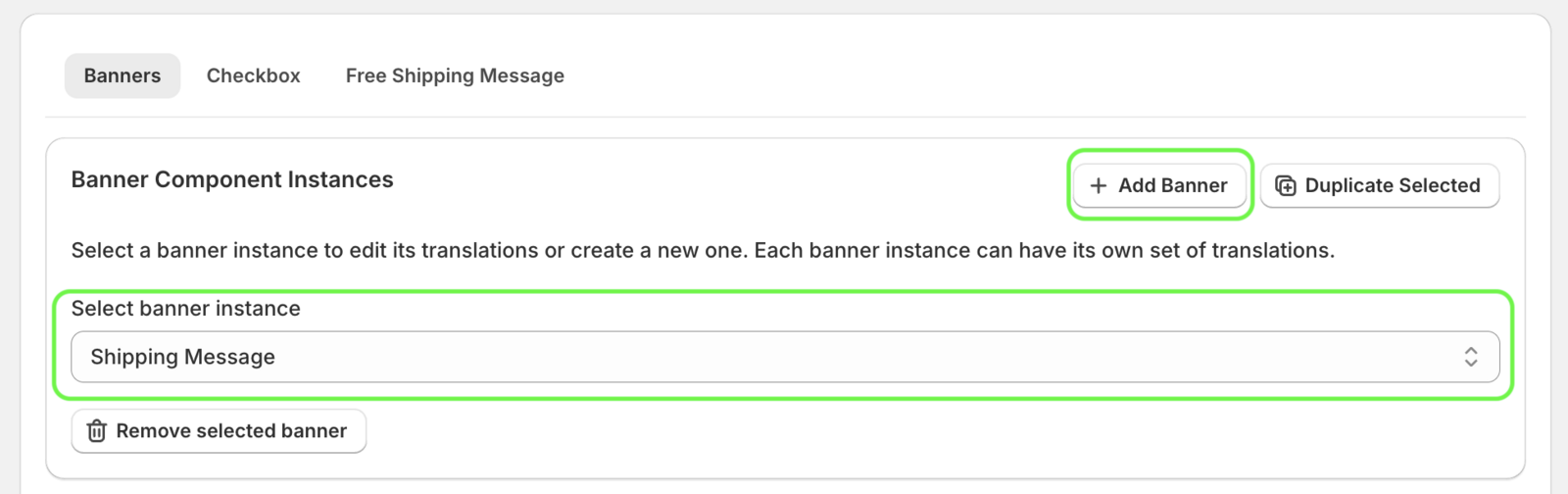
Step 6. Create An Instance Each App Block You Want to Translate
Step 7. Match the Banner Instance name from Step 6 on the App Block in the Block Settings
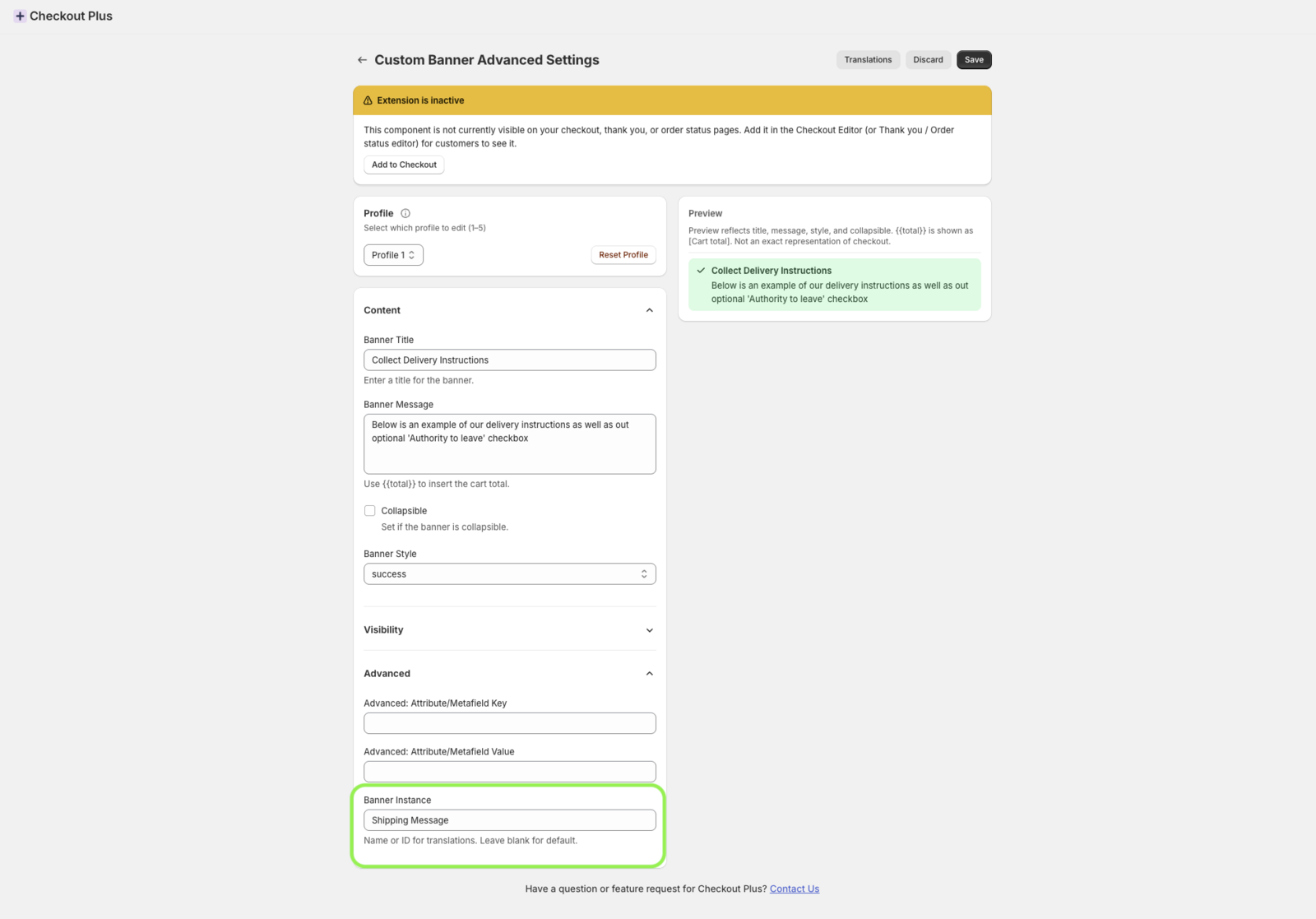
Once you have done this select Save and you are all done!
Interested in Checkout Plus? Try it for free now!